> ## Documentation Index
> Fetch the complete documentation index at: https://docs.airscale.io/llms.txt
> Use this file to discover all available pages before exploring further.
# Filter tables
> Apply filters to your tables to quickly find and analyze the data that matters most
## 1. Click on "Filter"
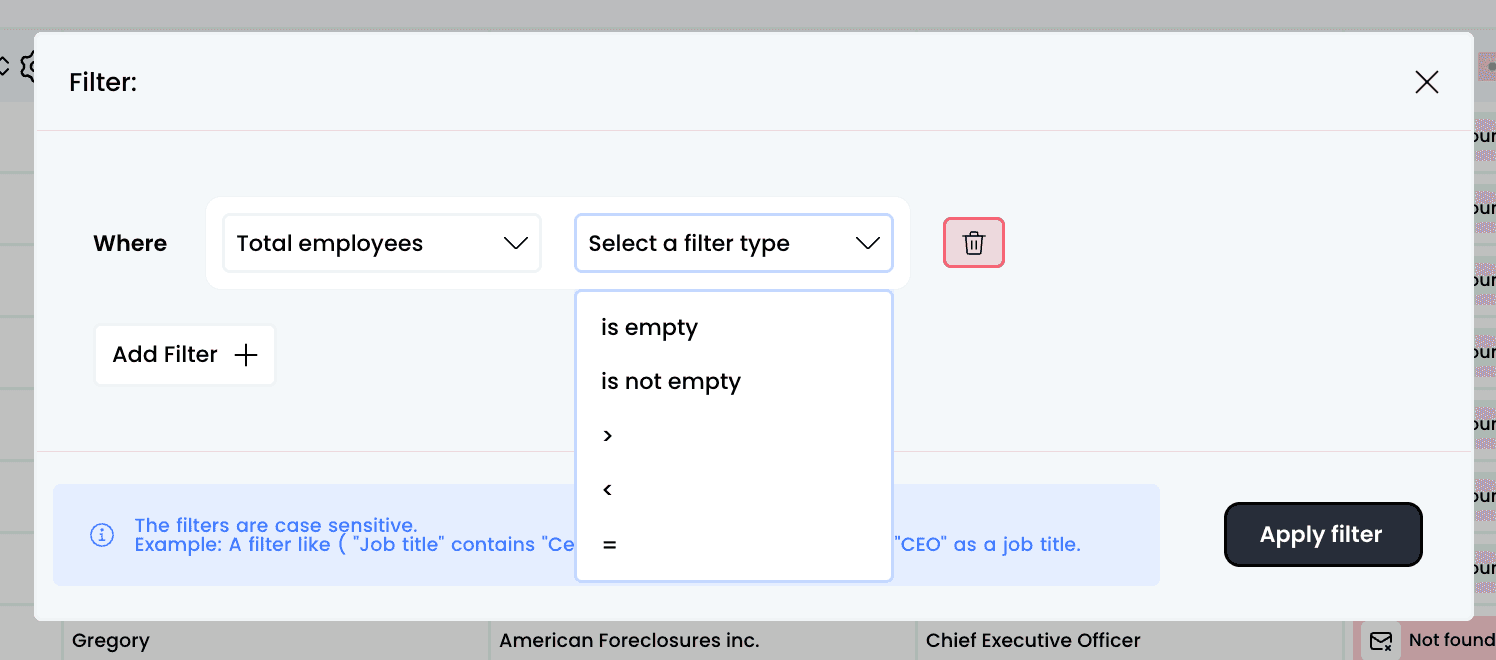
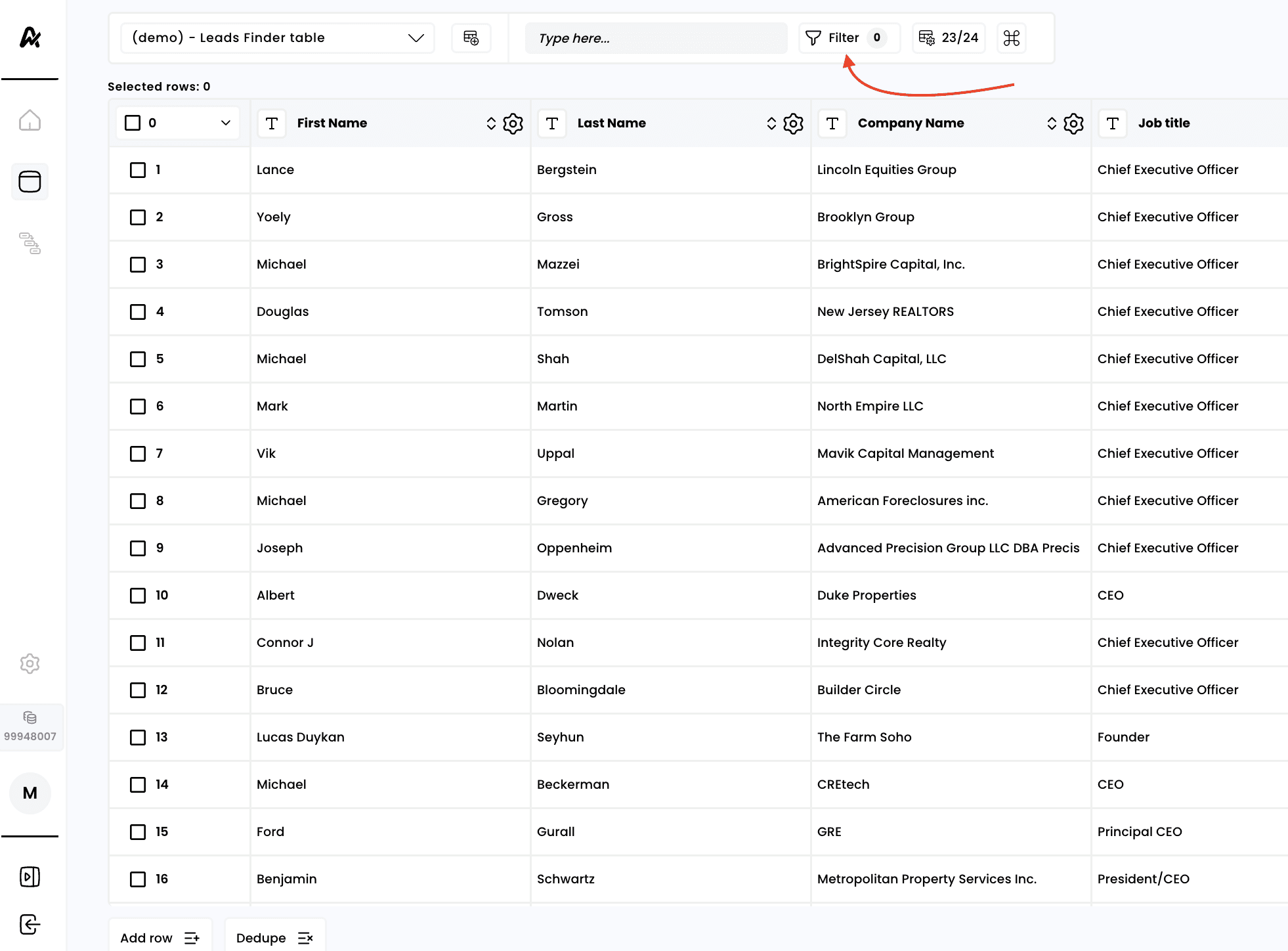 You will then have the option to select one or several columns from your table:
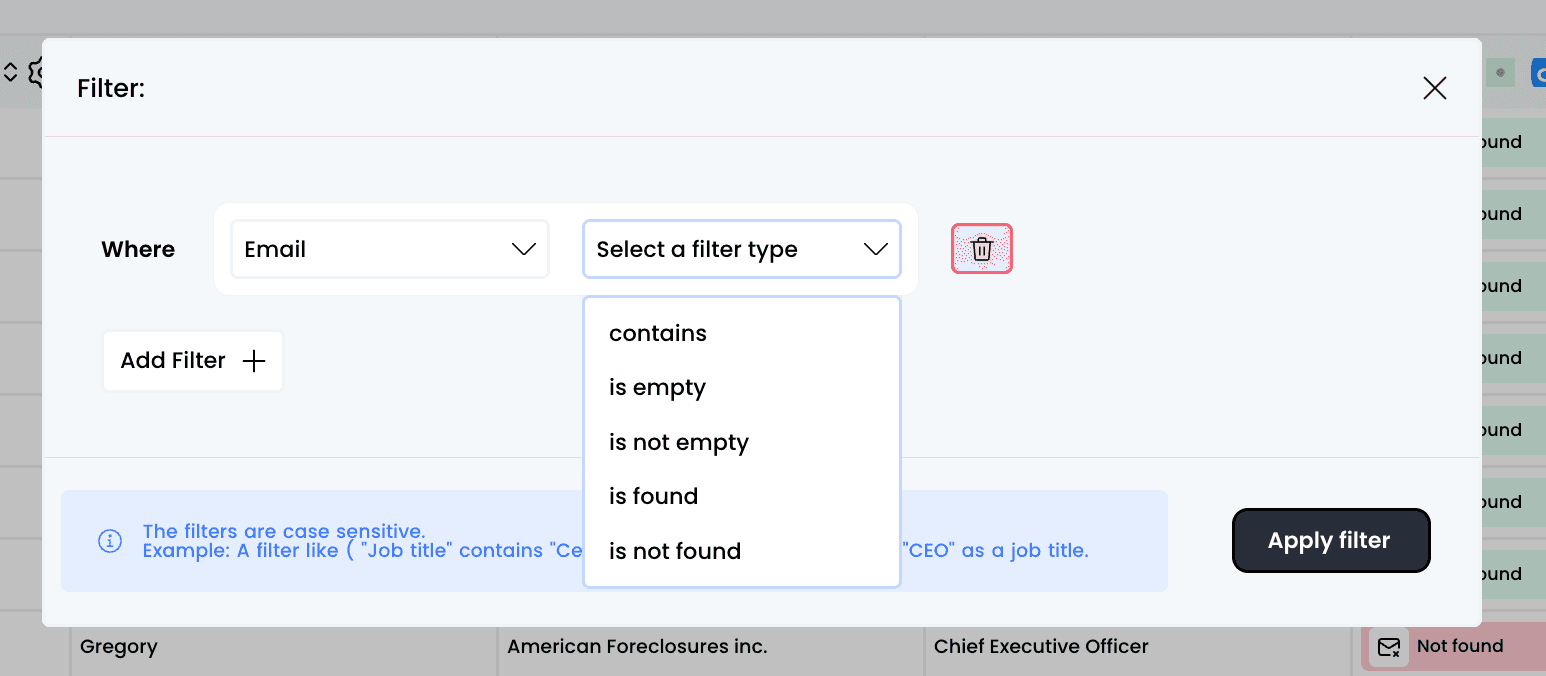
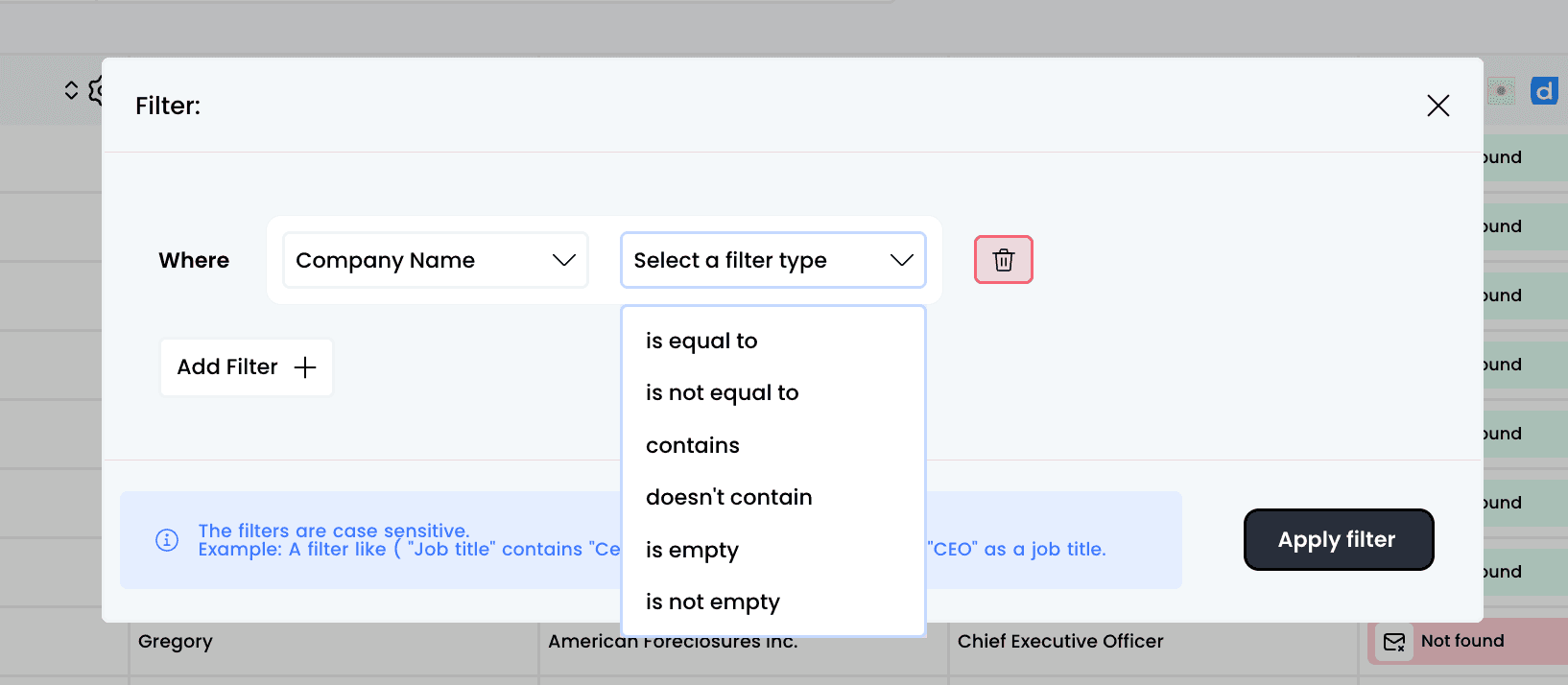
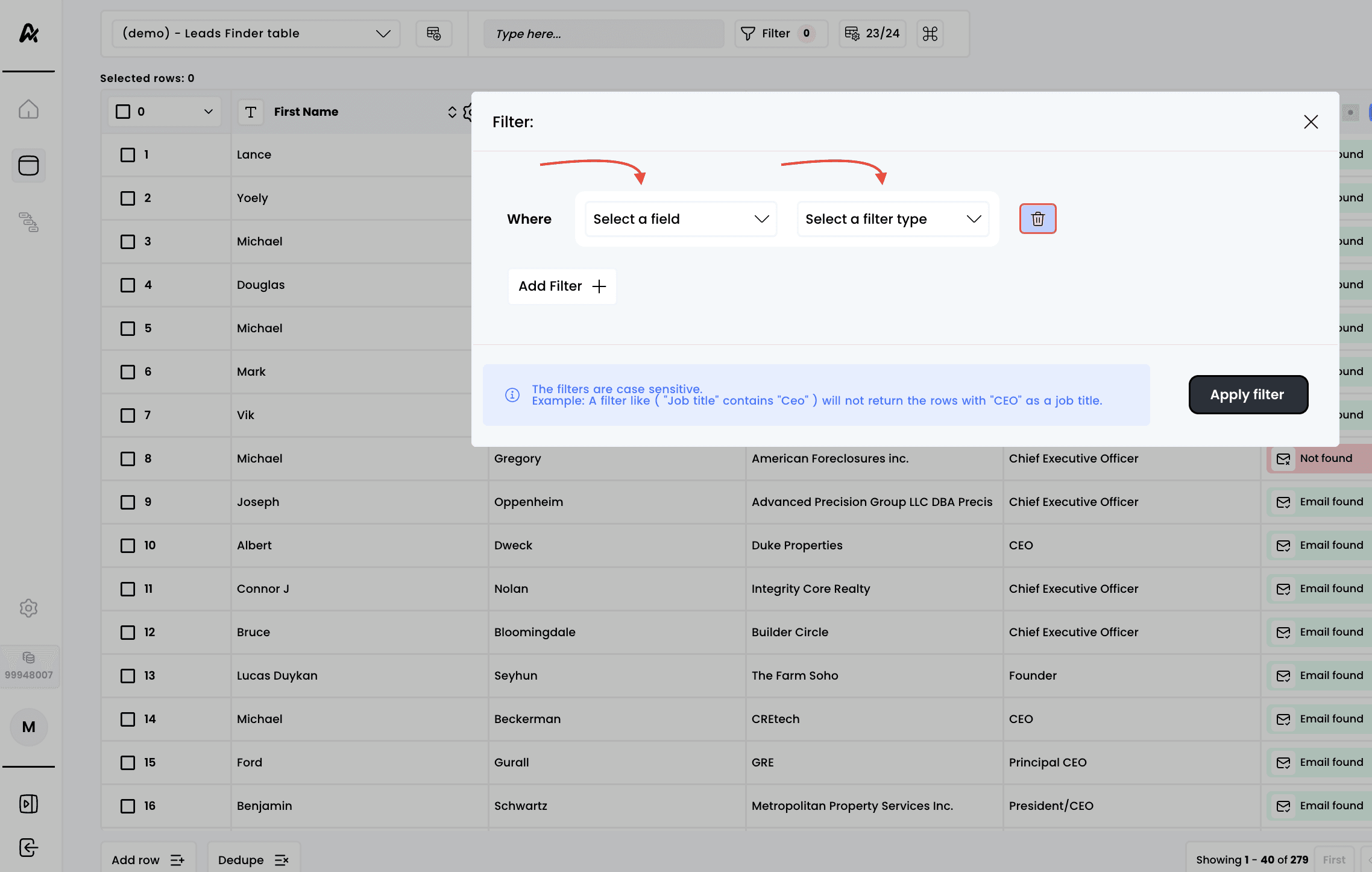 Once a column is selected, you will have several filtering options available (depending on whether it’s a text field, a numeric field, or an email field):
***Example of filtering emails:***
 ***Example of filtering text field :***
 ***Example of filtering a numeric field :***
 **Note:** the filters are case sensitive. A filter like "Job title" contains "Ceo" will not return the rows with "CEO" as a job title
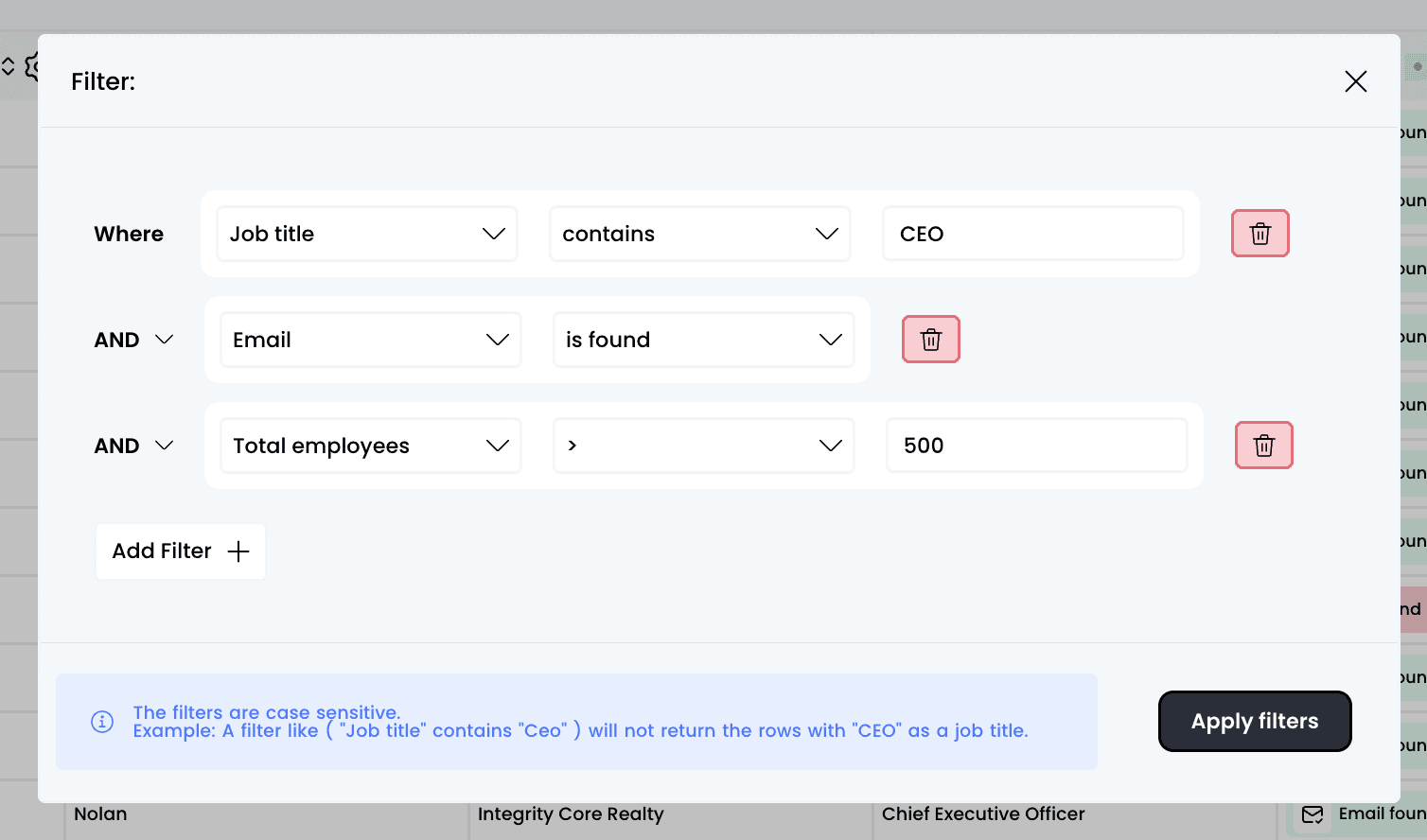
You also have the option to apply multiple filters at the same time:
**Note:** the filters are case sensitive. A filter like "Job title" contains "Ceo" will not return the rows with "CEO" as a job title
You also have the option to apply multiple filters at the same time:
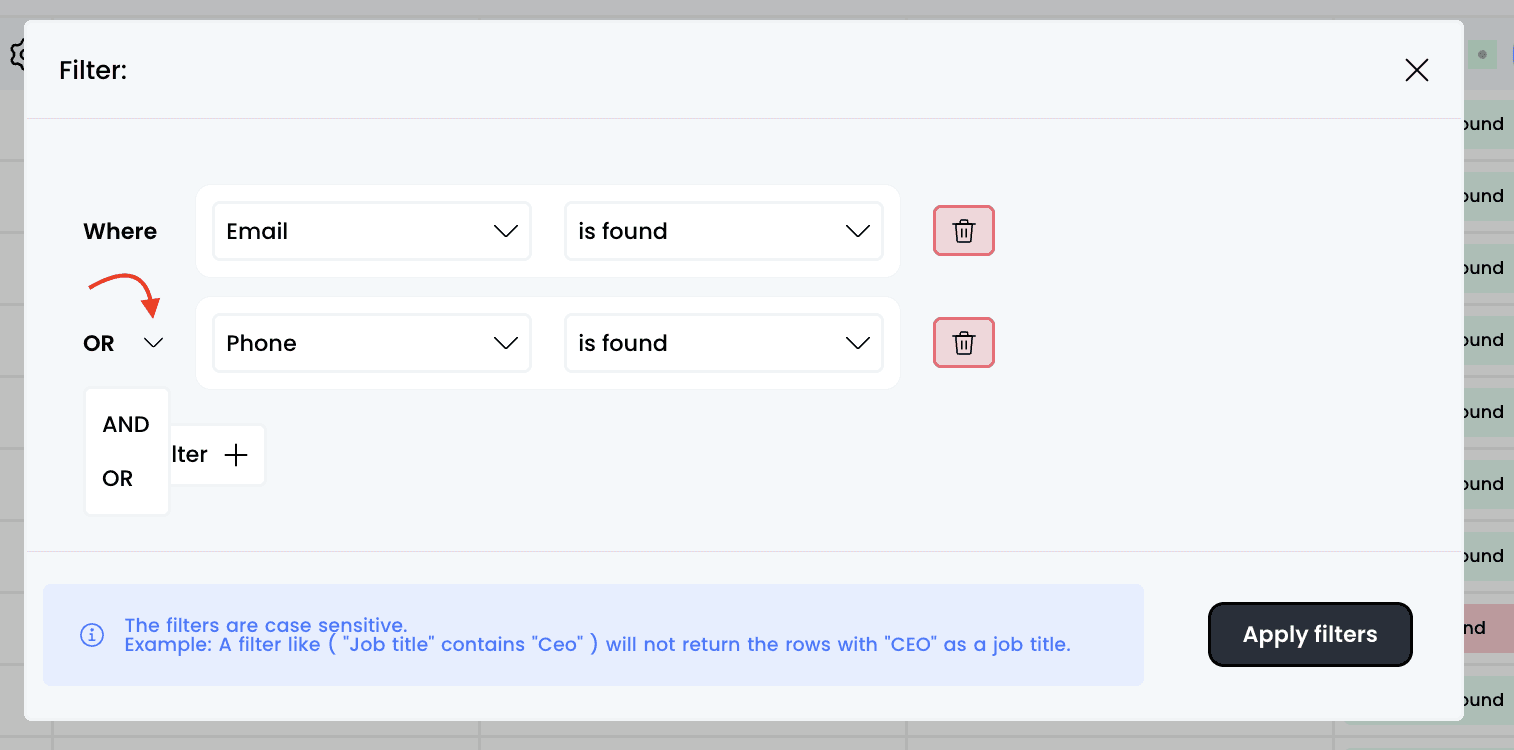
 And the option to replace the “AND” field with “OR” by clicking the small arrow on the right:
 Once you’ve applied your filters, all you need to do is click on “Apply filters” and the table will update
**Note**: the more rows the table contains, the longer it will take to load and apply the filters
## 2. Another option: use the search bar to filter
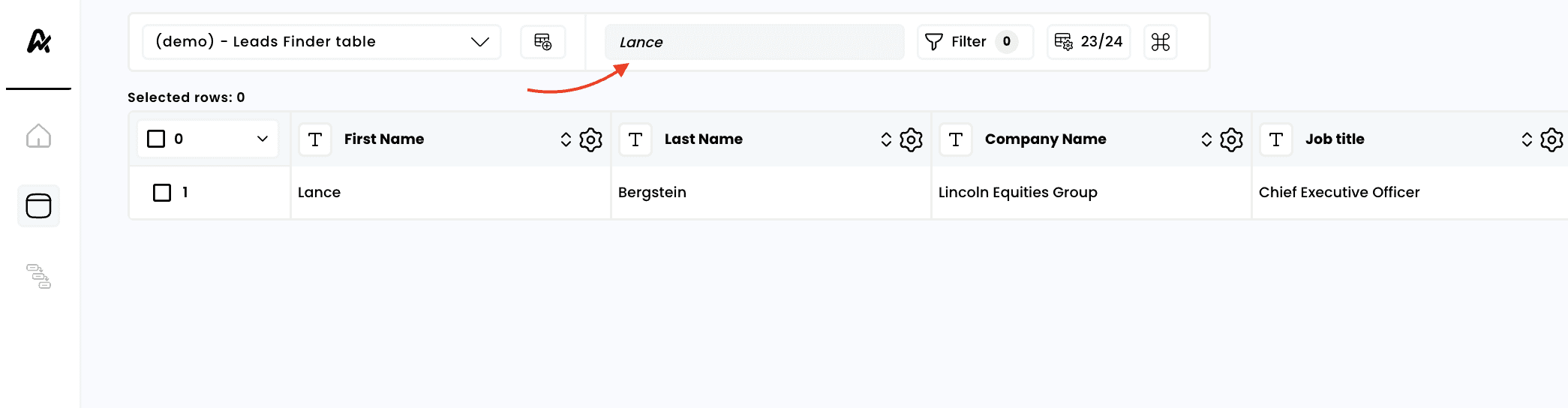
You also have the option to use the search bar to look for a specific item within your table (this can be a first name, an email, a numeric field, or anything else):
Once you’ve applied your filters, all you need to do is click on “Apply filters” and the table will update
**Note**: the more rows the table contains, the longer it will take to load and apply the filters
## 2. Another option: use the search bar to filter
You also have the option to use the search bar to look for a specific item within your table (this can be a first name, an email, a numeric field, or anything else):
 This documentation is built and hosted on [Mintlify](https://mintlify.com), a developer documentation platform.