1. Why use the AI enrichment with Airschool ?
Manual contact enrichment or cleaning is slow, and impossible to scale. Airschool’s AI enrichment module automates the entire process, directly from your lead lists. For example:- Infer job seniority and ICP fit
- Generate personalized icebreakers
- Summarize company positioning
- Detect buying intent signals
2. Classic LLMs vs Airsearch
The second step of your enrichment panel (after selecting the rows to use AI on) is the “Web access?” mode.- No web access: Best to edit, format, or clean your data. Use this mode when your prompt only needs data already existing in your table and doesn’t need to browse the web to provide the expected output
- Web access: Use this mode if you want to find data on the web and want AI to have web browsing capabilities. Useful to research data online about a company or a prospect by visiting the web / website pages (this mode will select Airsearch 1.0 as the default LLM to use). Check our Using Airsearch guide for more information
3. How to prompt
A good AI enrichment prompt always includes three elements:Good inputs
Each input variable (e.g. First name, Job title …) must be manually linked to its corresponding column in your table. Click on the variable in your prompt and select the matching column: it turns blue once correctly connected.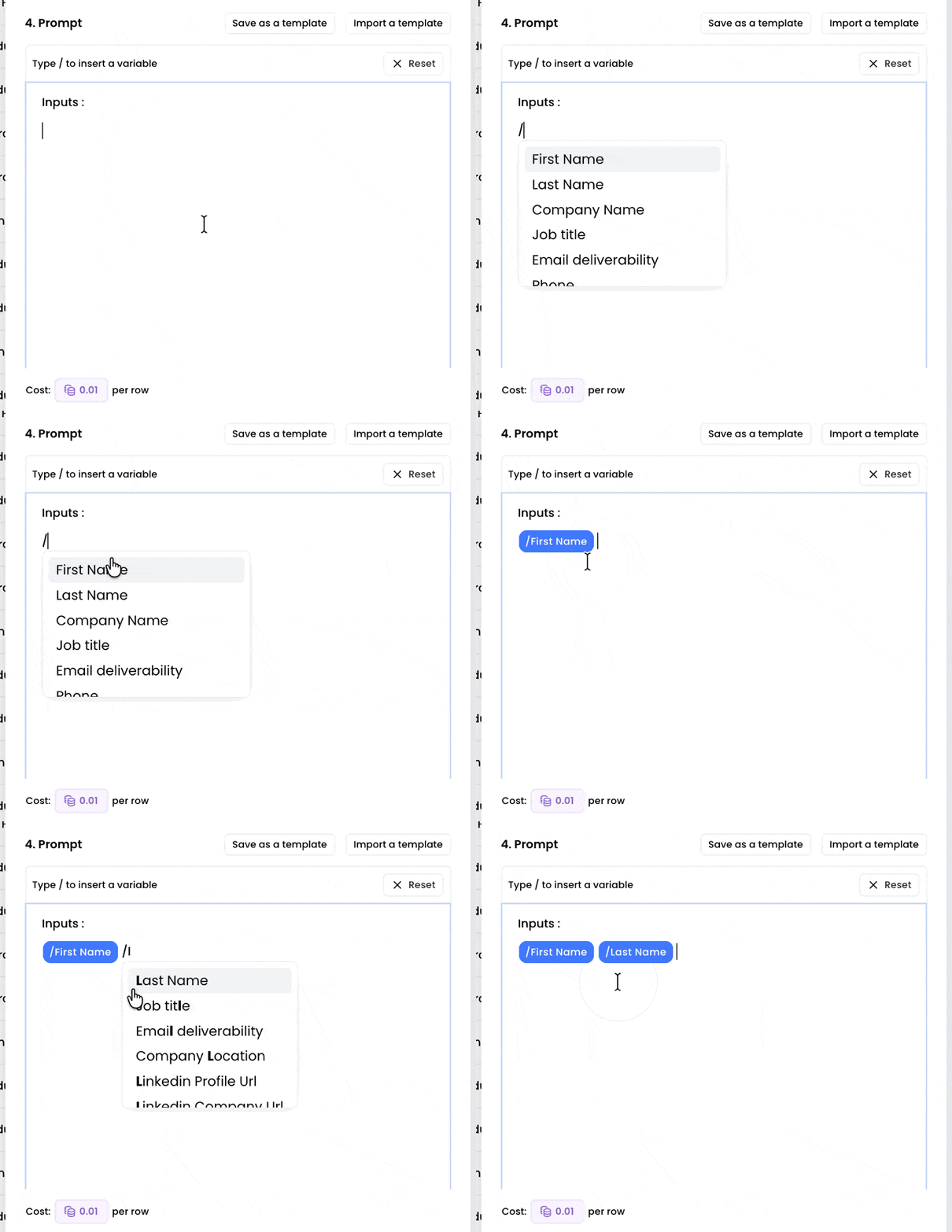
Context
Start by telling the AI who it is and what it’s doing. A prompt that opens with “You are a B2B market research analyst. Your goal is to…” will produce sharper, more relevant results than one that dives straight into the task. From there, break down the instructions into explicit steps: what data to look at first, what to infer from it, what to prioritize, and what to ignore. The more structured your instructions, the more consistent and reliable the output across your entire lead list.Output indication
Specify the exact format expected. The AI will fill whatever shape you give it. If you need a one-liner for a CRM field, say so. If you need a three-bullet summary, define each bullet. Specifying the format, tone, length, and any constraints (no filler phrases, always use second person, flag if data is missing) ensures the output is immediately usable, with no manual cleanup required. When using Airsearch, you can define your outputs with even more precision, check our Using Airsearch guide for more information4. Save & import templates
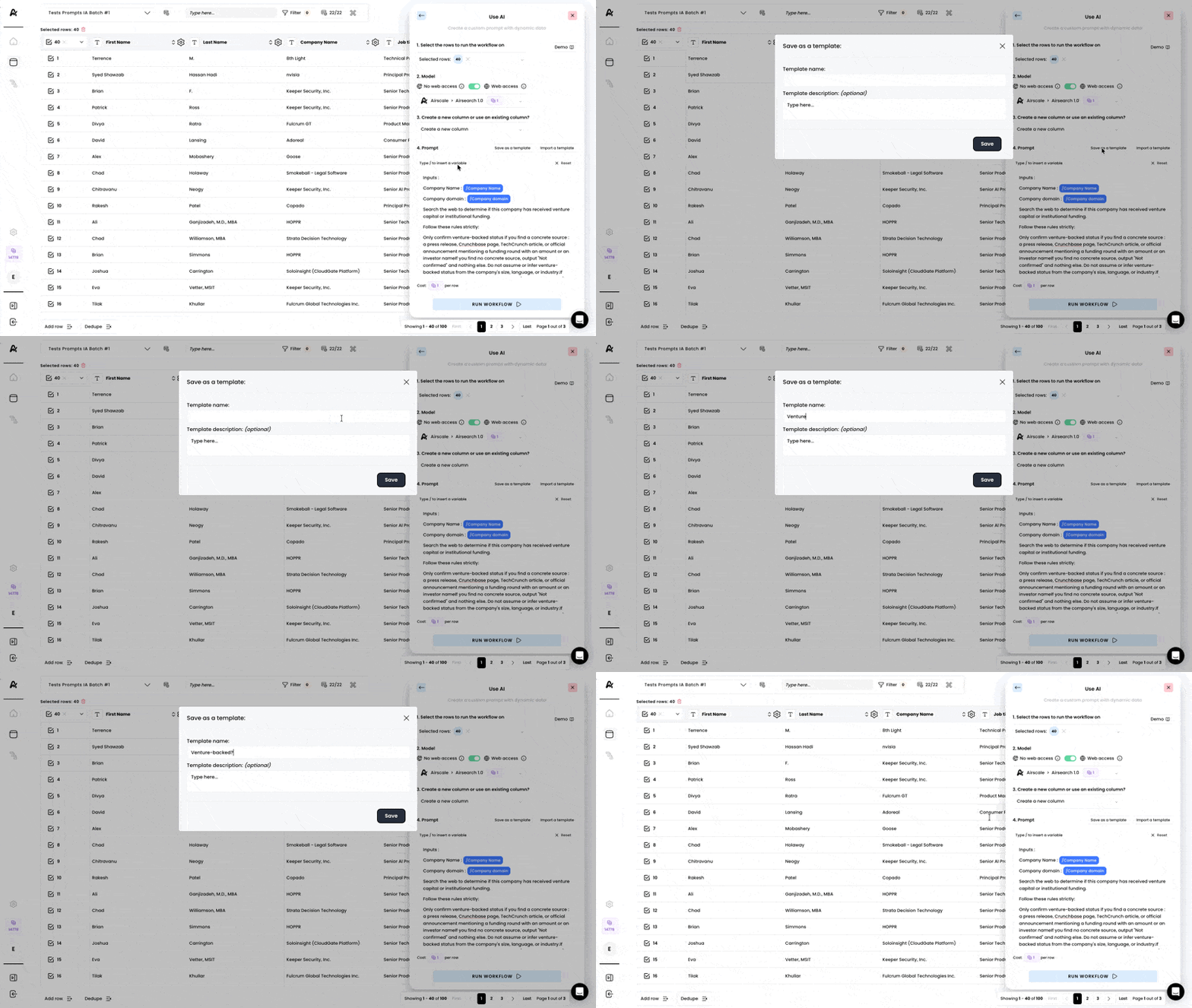
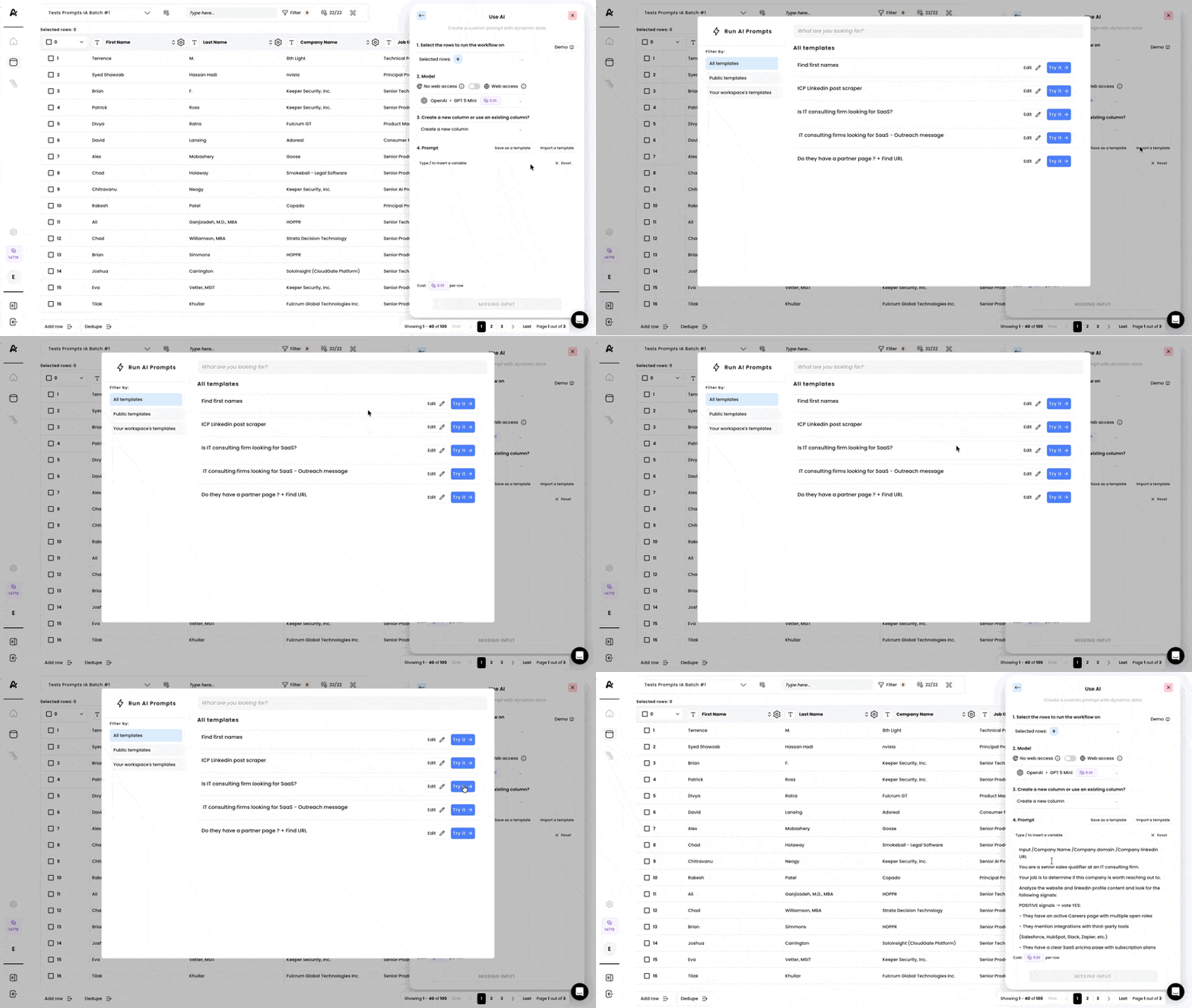
Once you’ve built a prompt that works, you don’t want to rewrite it from scratch every time. Airschool lets you save any AI enrichment prompt as a reusable template, so your best configurations are always one click away. Saved templates can then be imported directly into any workflow or enrichment column, whether you’re setting up a new campaign, onboarding a new lead list, or simply duplicating a process that’s already proven its value. No copy-pasting, no risk of losing a prompt that took time to calibrate. This is especially useful for teams: instead of each member building their own version of the same prompt, you define a shared standard once, save it, and everyone works from the same reliable baseline.How to save a new template:
How to import a template:
5. Connect your own LLM
You can connect your own API key by going in the platform Settings and then, in the Integrations section. Paste your key. Once that’s connected, the key next to the LLM turns green (when selecting your LLM in “Use AI”)6. Results
Classic LLM results
If you’ve chosen not to grant web access to your search, then only one column will appear at the end of your table: “AI” If you click on the expand icon, you will be able to see the full AI response.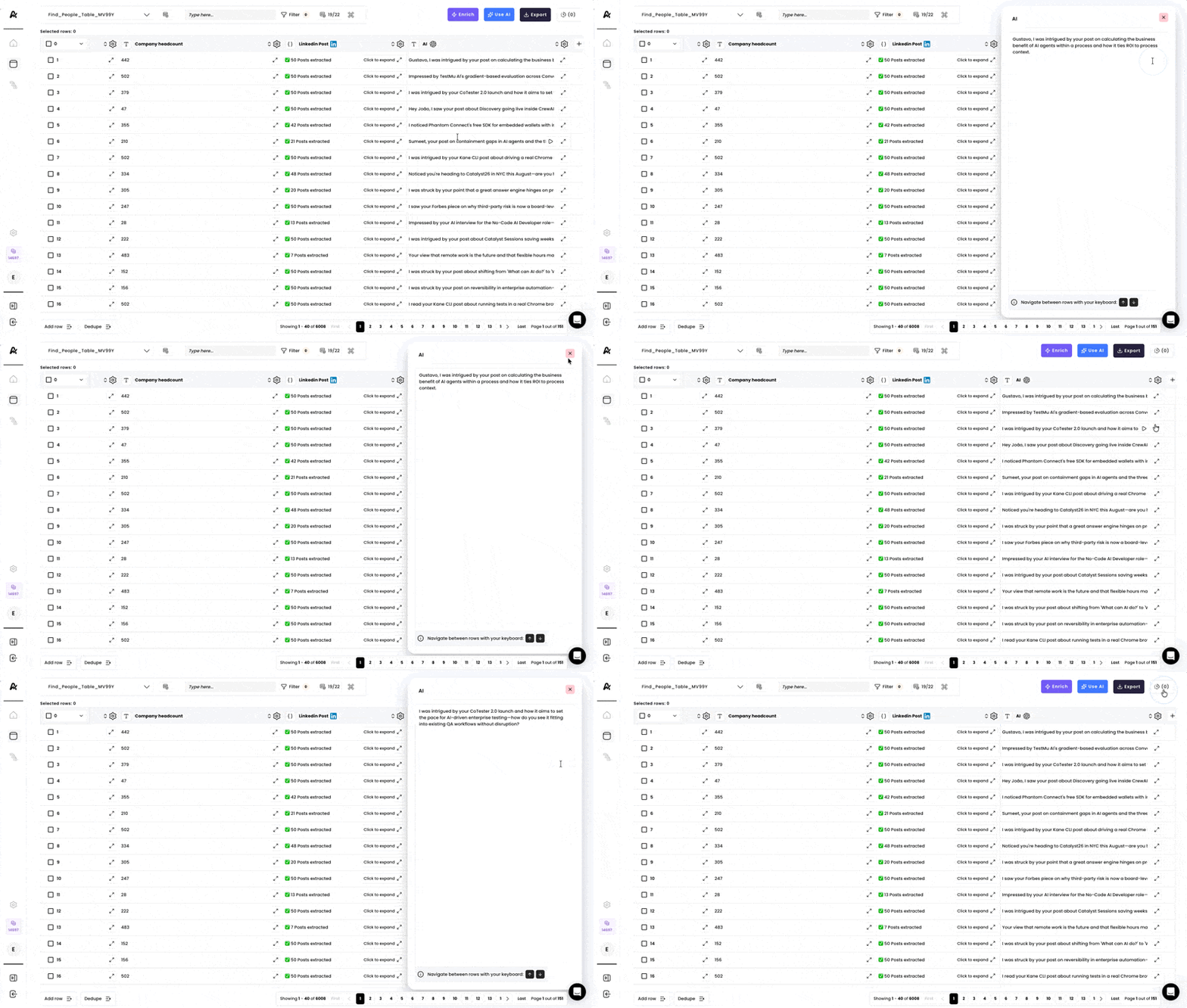
Airsearch results
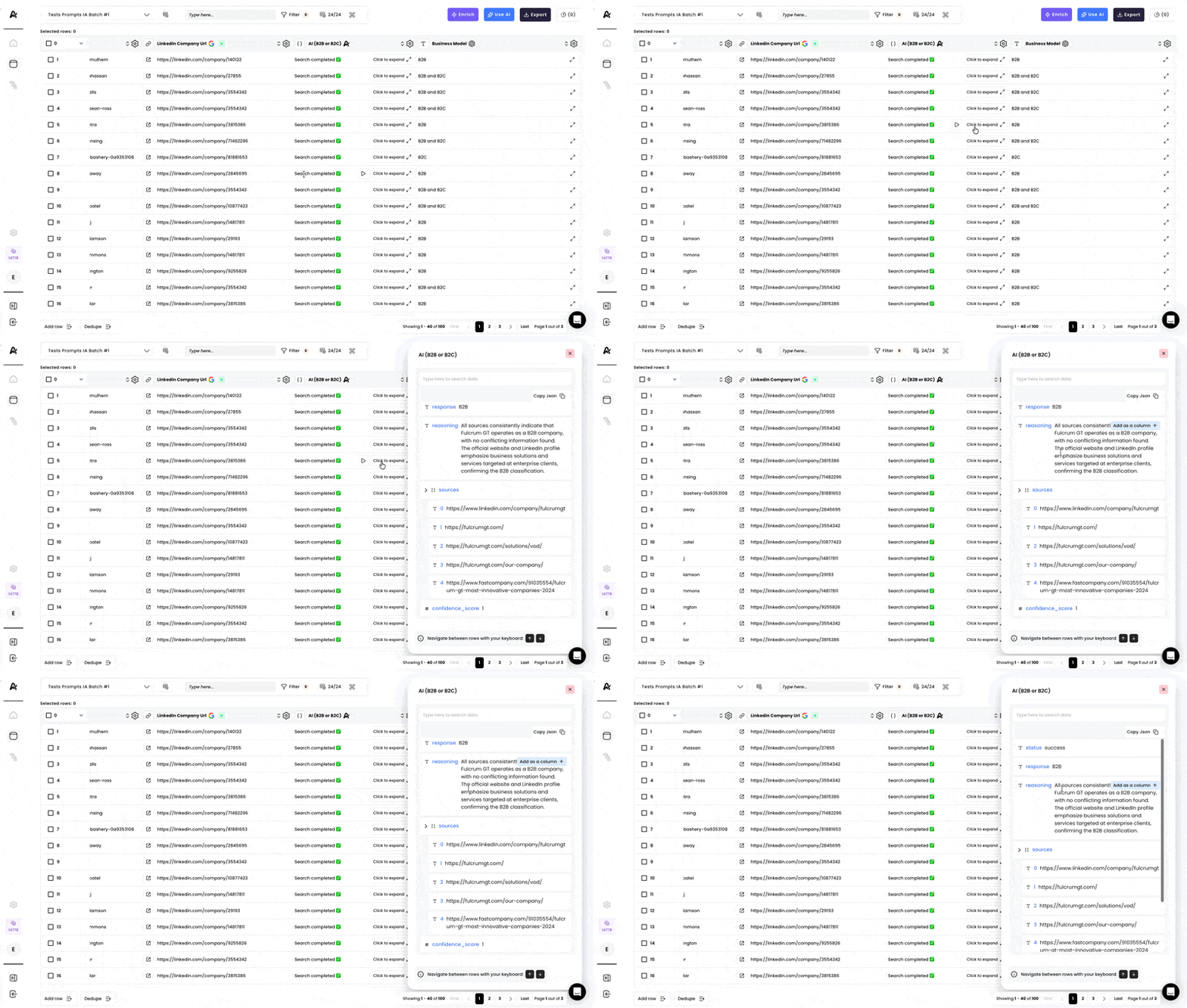
Two columns usually appear at the end of your table when the workflow has run:- Left column - “Search completed ✅”, & “Click to expand” which reveals the AI reasoning and details of the search Click on “Click to expand” to access information such as the details of the reasoning, the sources, the certainty of the search results etc. Note : You can add any of these fields as new columns if you click on “Add as a column +”, including the one you might have created with the “Define outputs” section
- Right column - the direct answer to your prompt