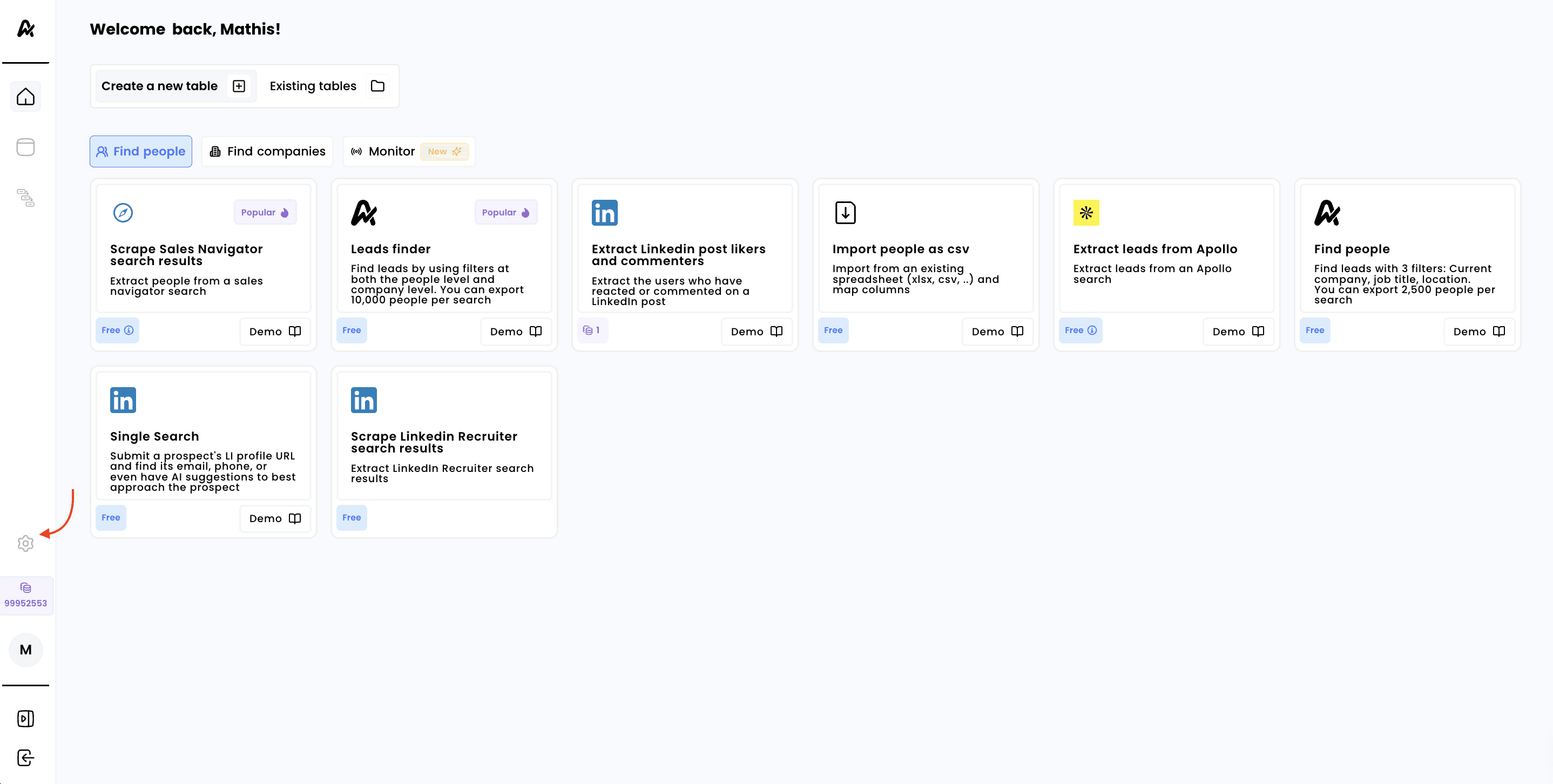
1. Click on settings
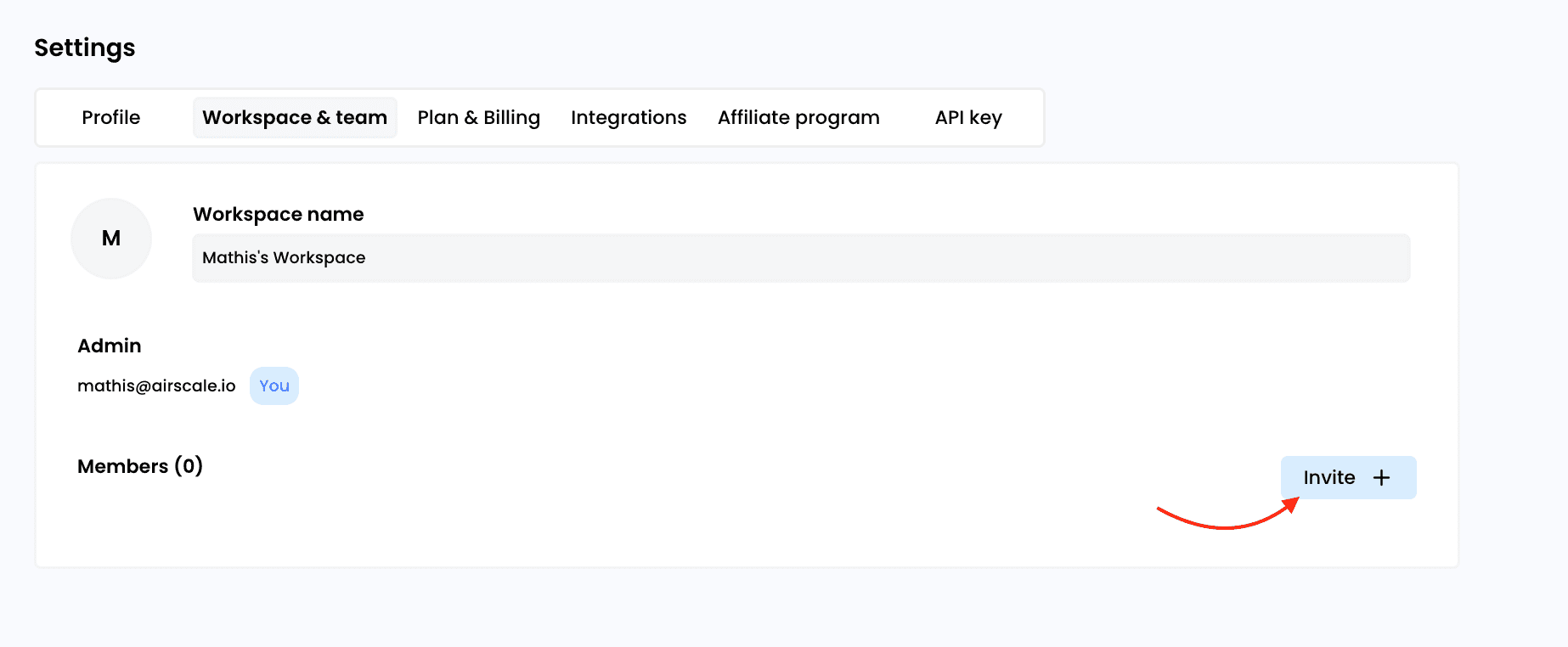
2. Click on Workspace & Team
You also have the option to change the workspace name if you wish. By default, the name will be the username of the person who created the account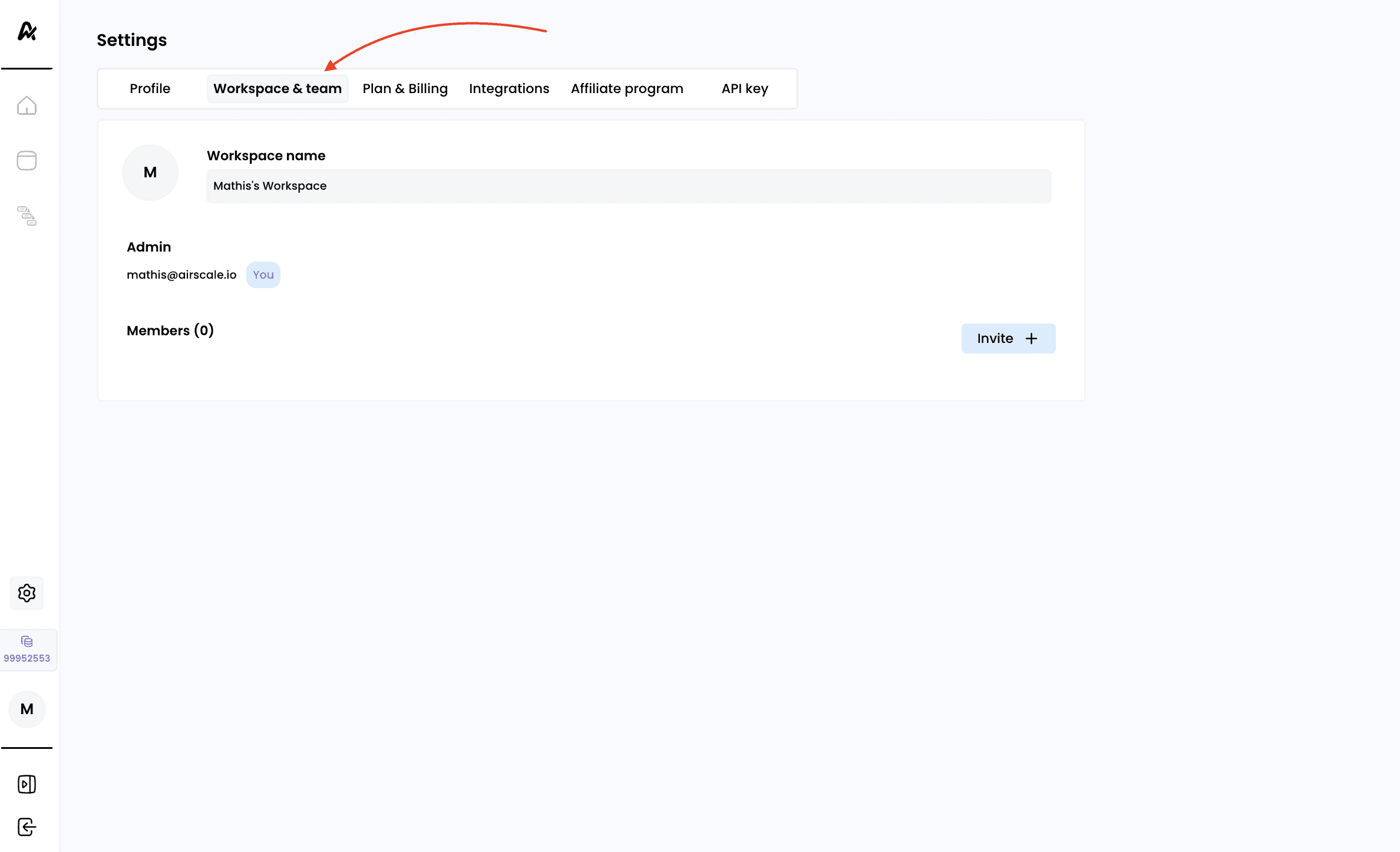
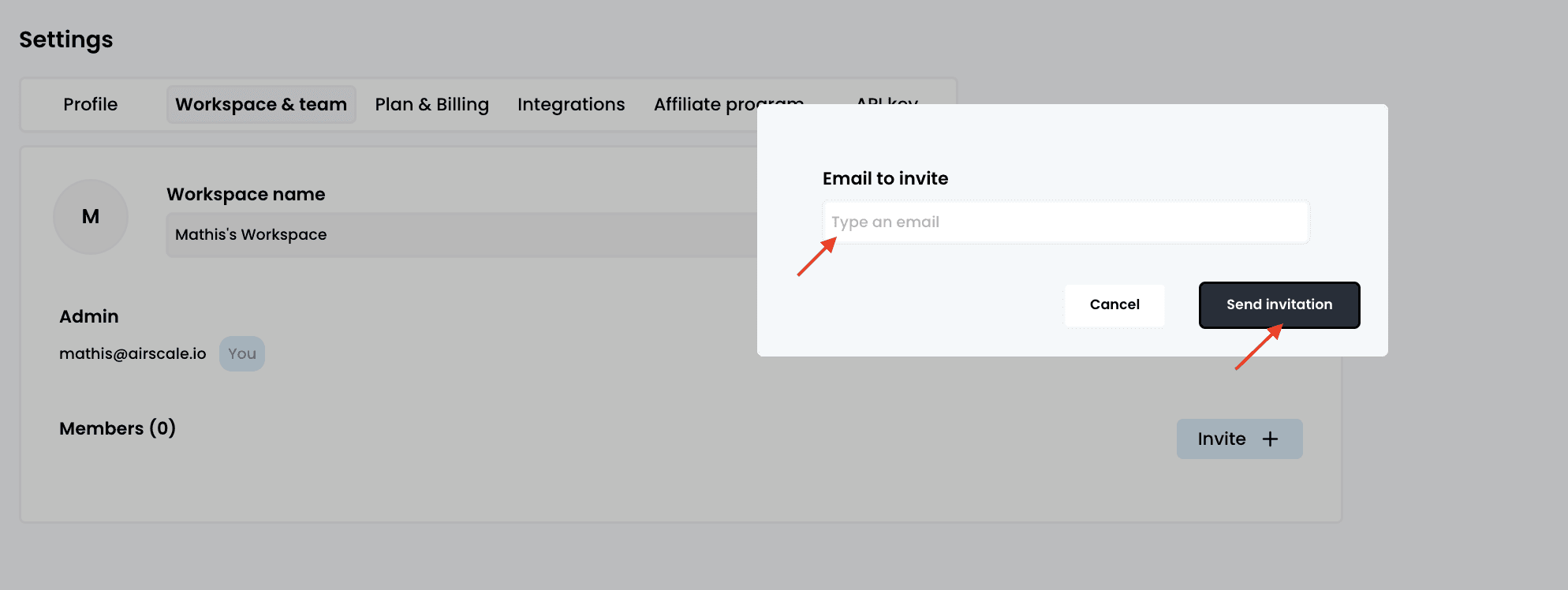
3. Click on “Invite” & “Send invitation”
You can add as many users as you like, it won’t impact the license price, as we do not charge per user (credit-based pricing model)Only the workspace admin can invite and remove users
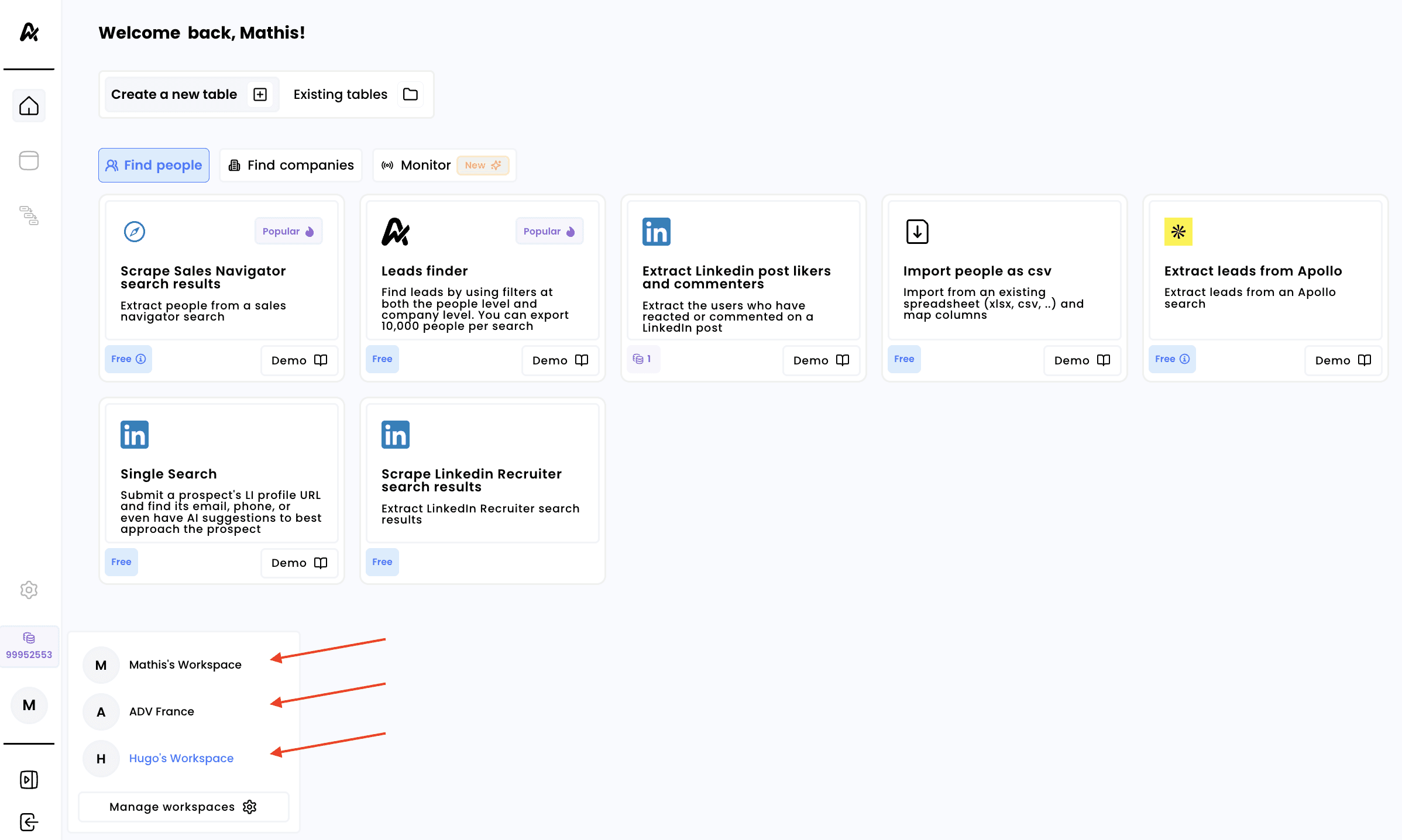
4. Switch workspaces to access credits
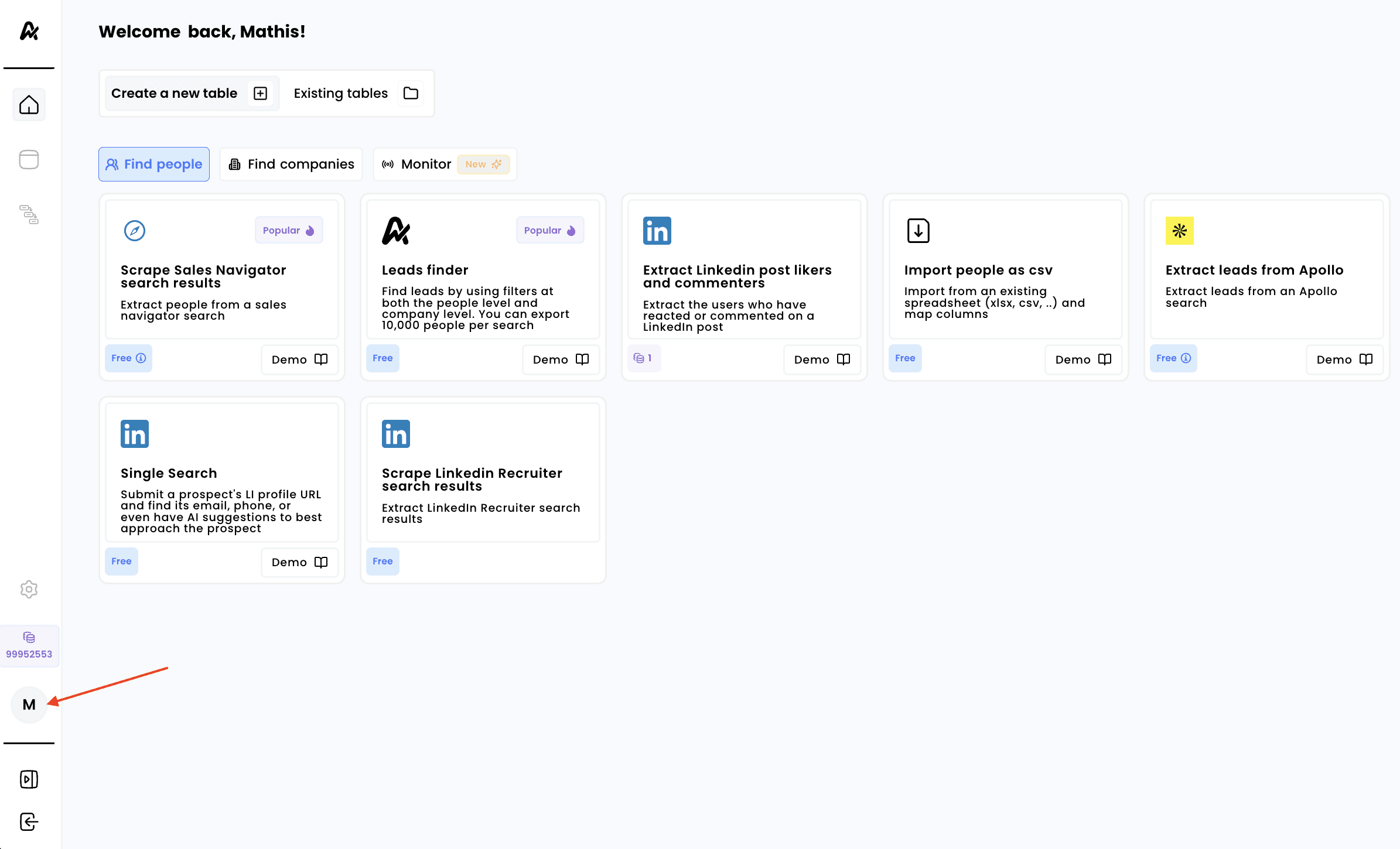
As soon as a user has been invited to a workspace and clicks the link received by email, they will have access to both their default workspace (created under their name) and the workspace they were invited to To access the tables and credits of the new workspace, click on the logo in the bottom-left corner of the platform, which displays the first initial of the user’s name: