Build lists
Leads finder
Export up to 10,000 leads in one search from various filters
Note
You can import up to 10,000 people per search
Large searches may take several minutes to complete
Use specific filters to get the most relevant results within the limit
0. Prerequisites
An active Airscale account with remaining credits
Clear understanding of your ideal customer profile (ICP)
Specific criteria for your target prospects (people and company attributes)
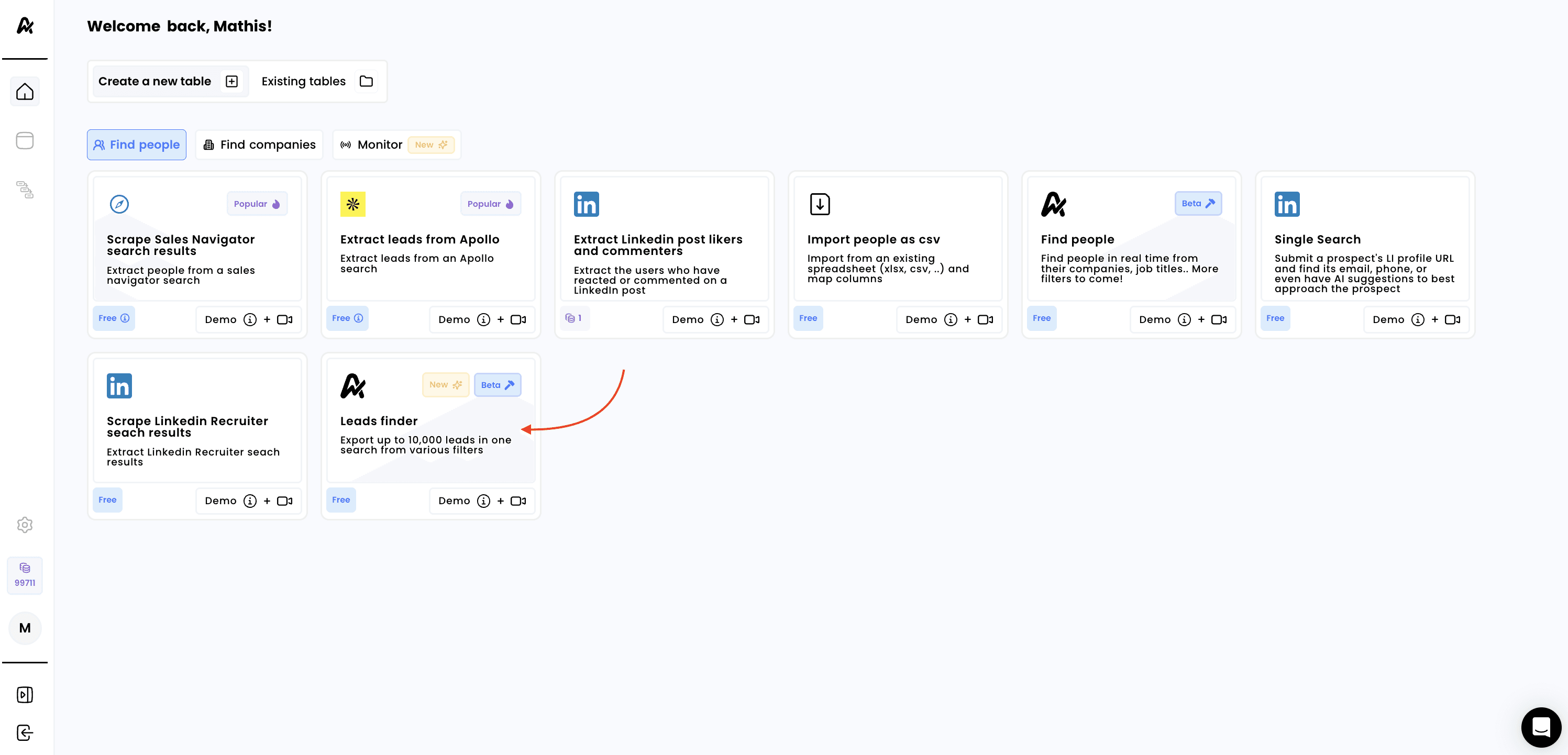
1. Click on "Leads finder"
Log into your Airscale dashboard
Select "Leads finder" from the available modules (look for the Airscale logo icon)
Note: the "Leads finder" module is Airscale's native search engine, so you don't need any external URLs or account connections
2. Apply your search filters
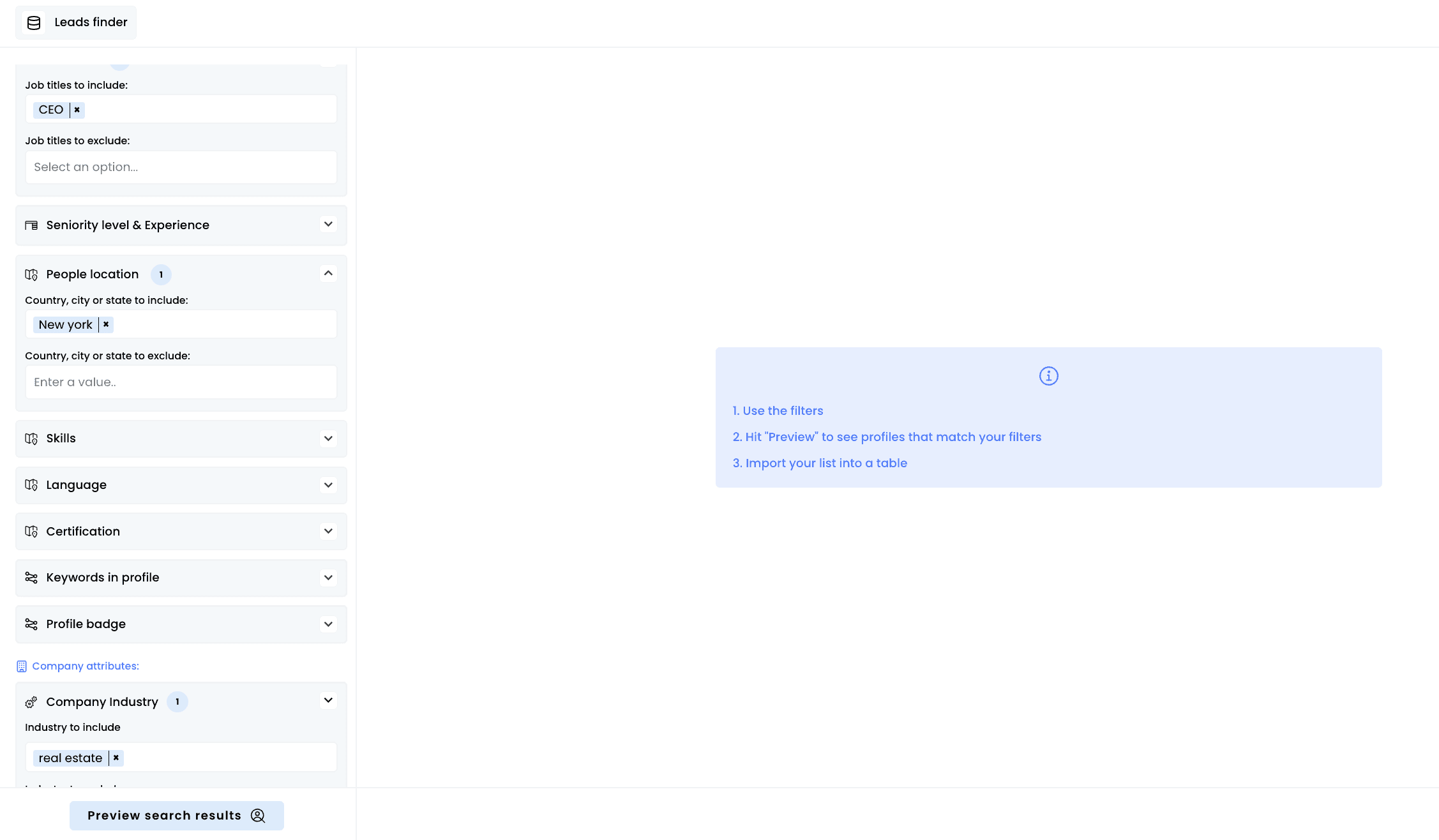
Configure your search criteria using the available filters:
People Filters
Current company (you can select an Airscale table containing a list of companies, or use the manual input to enter them manually)
Job titles
Seniority level & Experience
People Location
Skills
Language
Certification
Keywords in profile
Profile Badge
Company Filters
Company industry
Company size
Company headquarter location
Company type
Annual revenue
Keywords in profile
Founded year range
Funding
Employee by department
Headcount Growth
3. Visualize your results
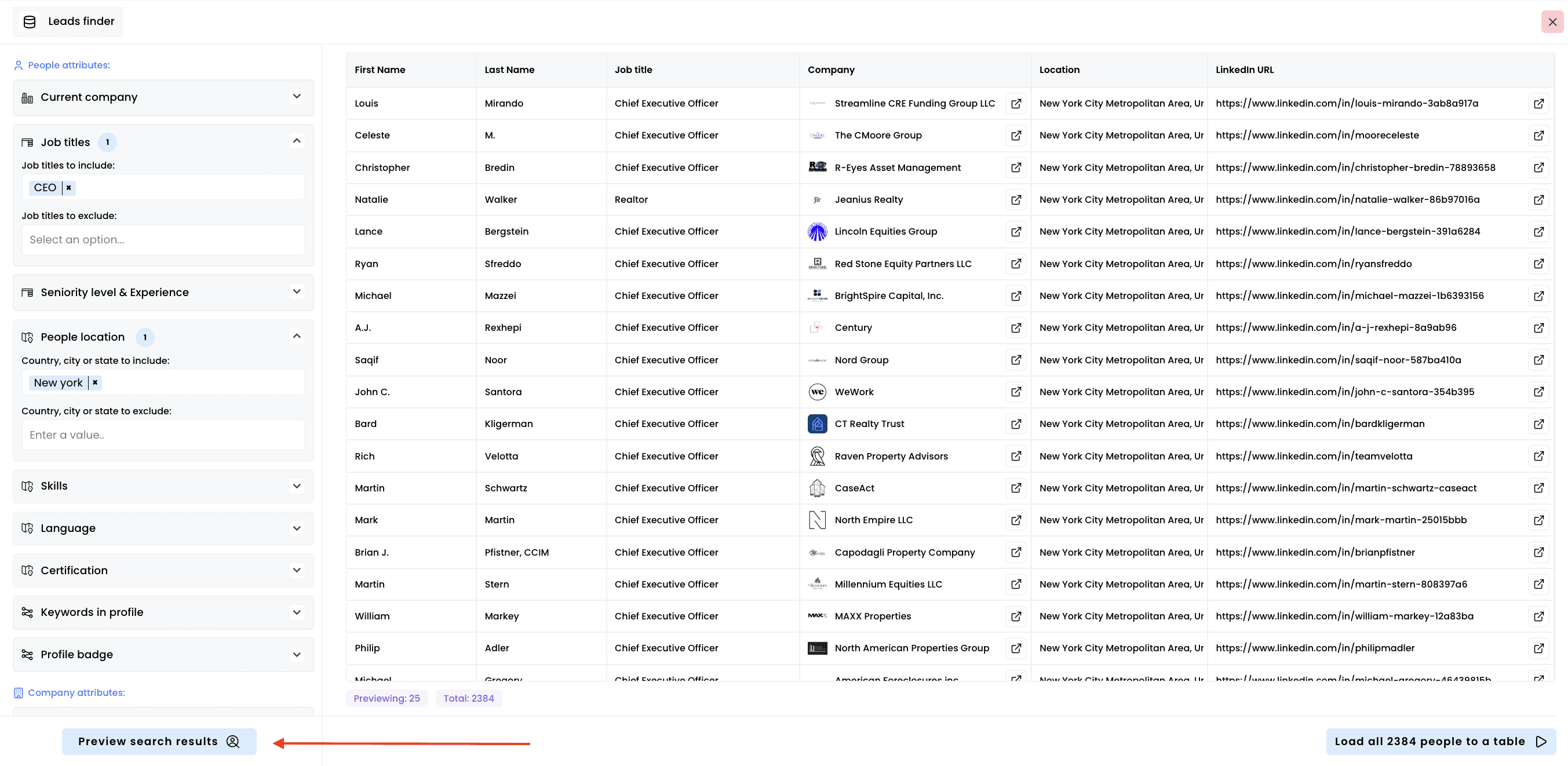
Click on "Preview search results" to see a sample of your search results
Review the preview data:
Names and current job titles
Company names
Geographic locations
Linkedin URLs
Check the results summary:
Total number of matches (e.g., "25 of 558,008 total")
Quality of matches against your criteria
Refine filters if needed:
Add or remove people or company attributes based on preview results
Modify or refine location targeting for better coverage
Note: ensure the preview shows relevant prospects before importing. Poor preview results indicate filters need adjustment
4. Launch the search
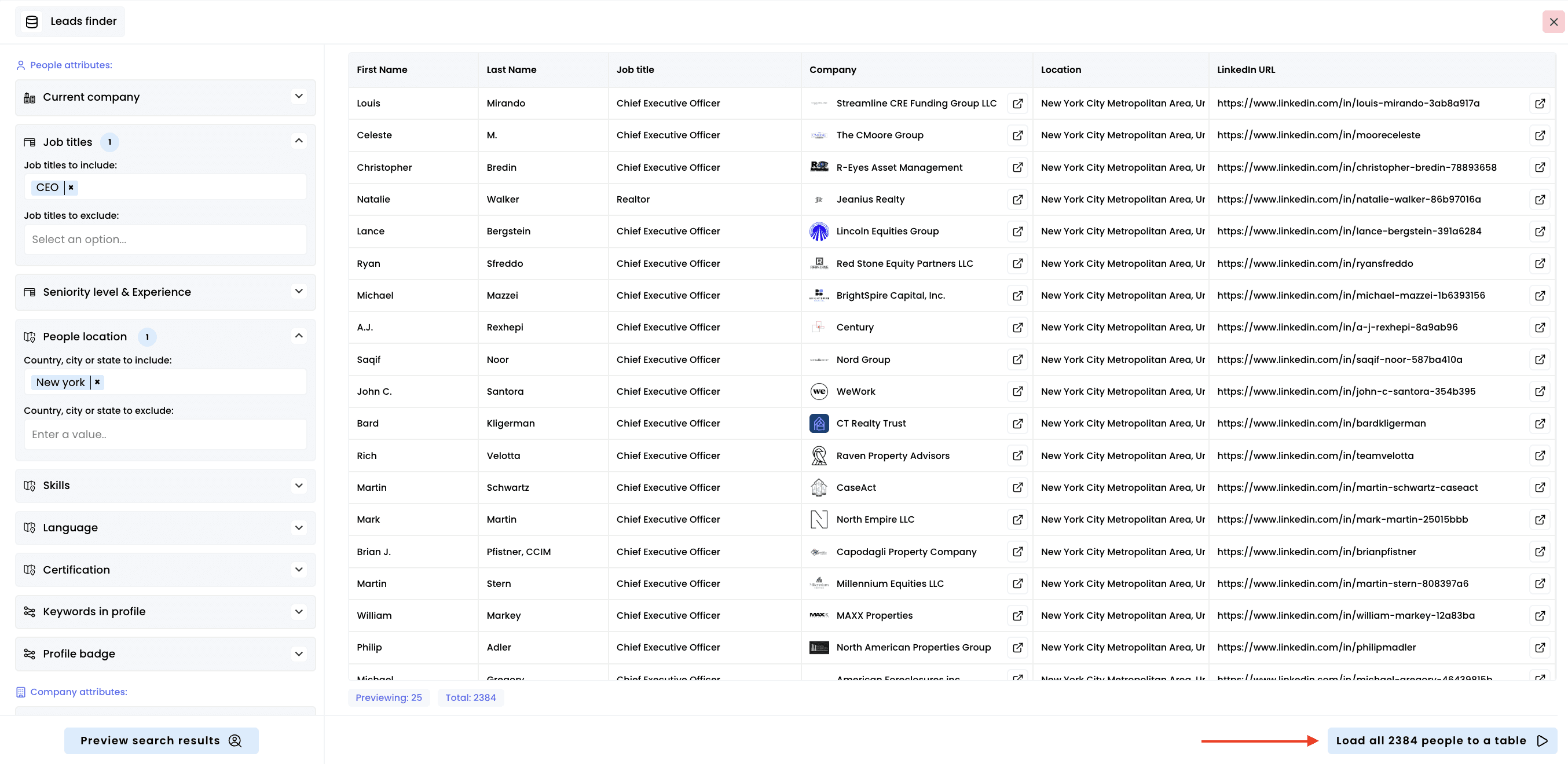
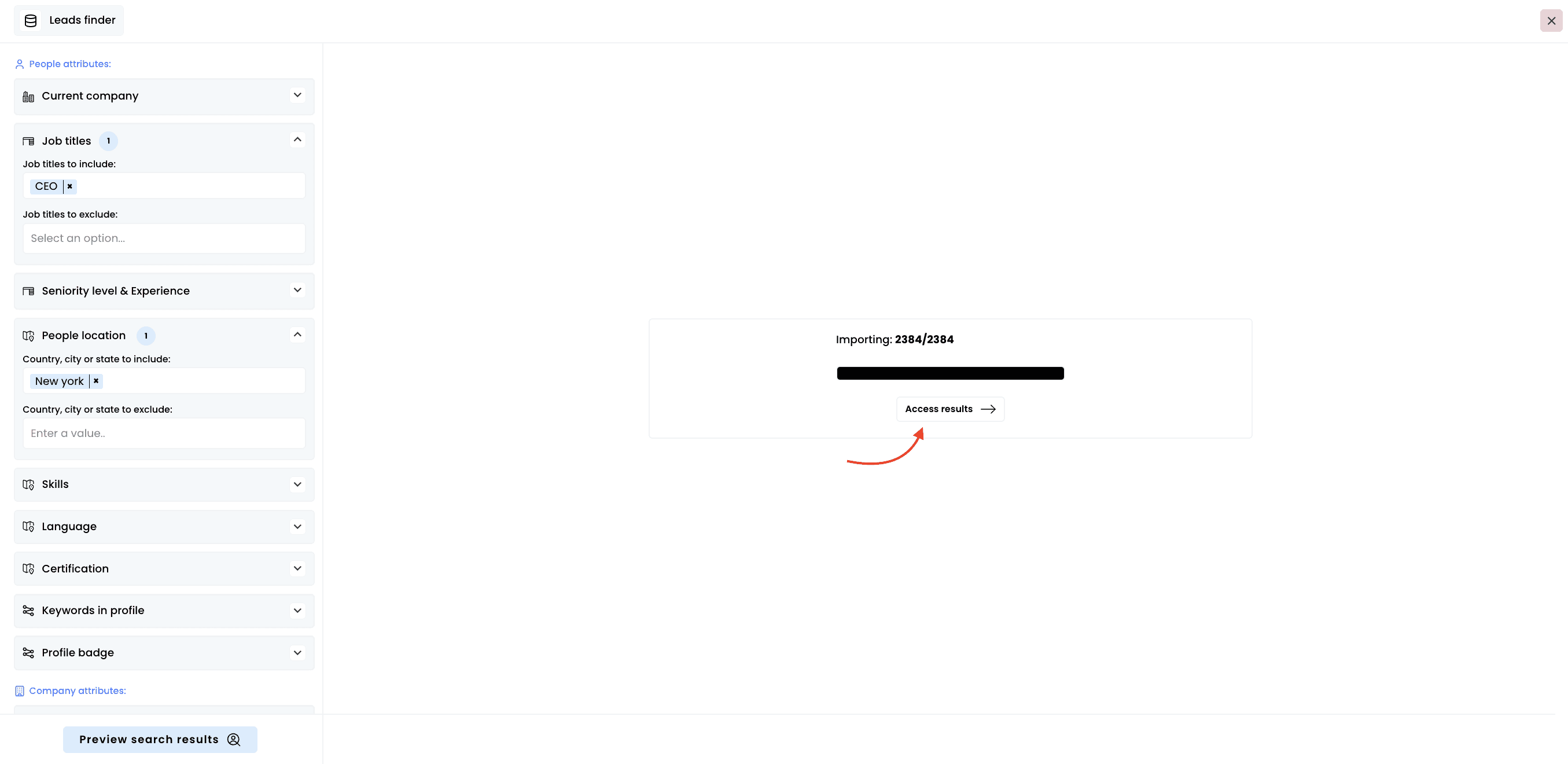
Click "Load all people to a table" to export the full search to a table
Monitor the import progress:
Progress indicator shows "Importing: X/10 000"
Percentage completion display
Real-time status updates
Wait for completion:
You can navigate away during processing
Note: the system automatically stops at 10,000 results even if more matches exist. Use more specific filters if you hit this limit and want different prospects
5. Access your results
Click on "Access results" to view your new prospect table:
Need help? Contact Support
Questions? Contact Sales