Utilities
Filter tables
Apply filters to your tables to quickly find and analyze the data that matters most
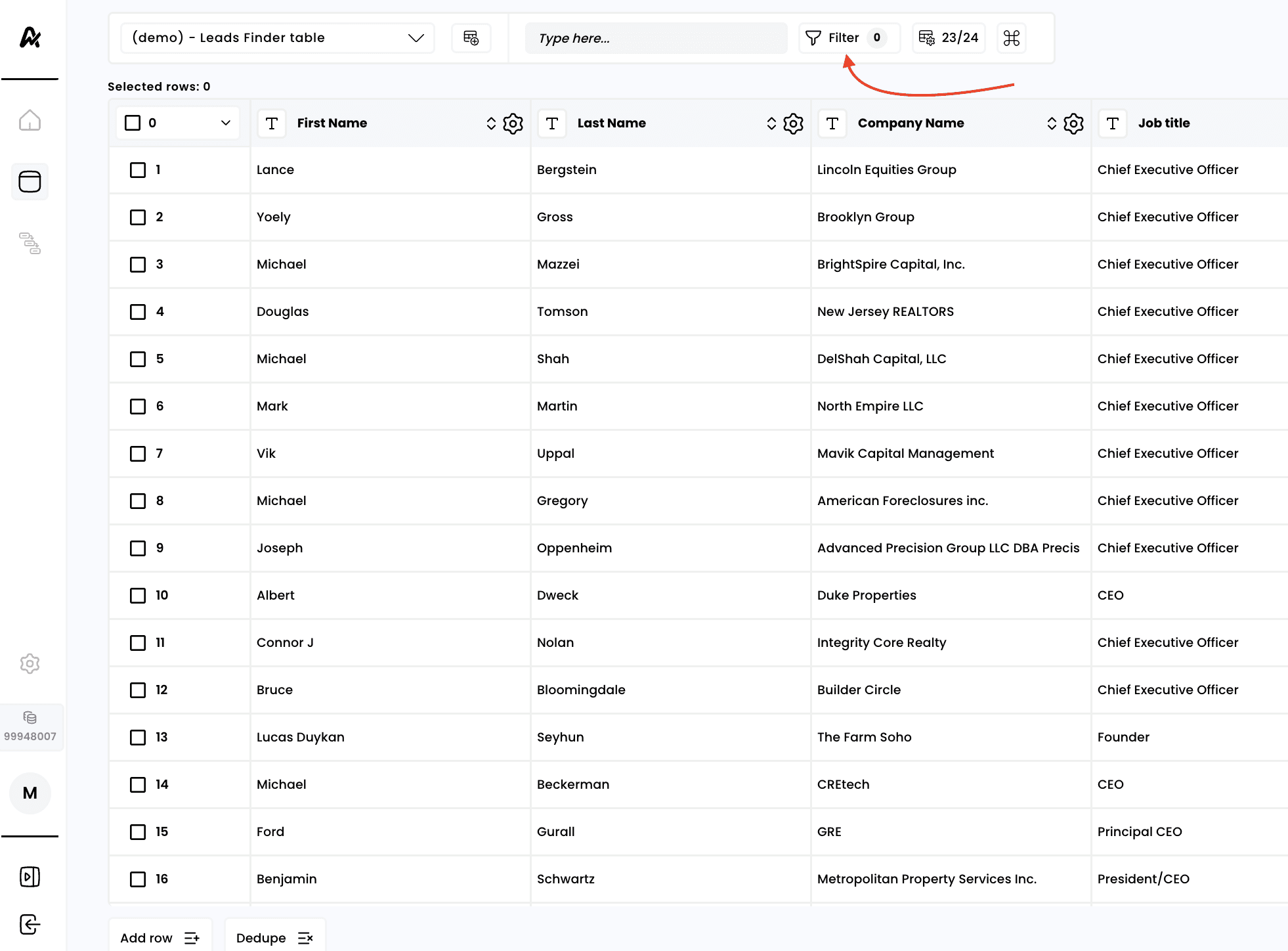
1. Click on "Filter"

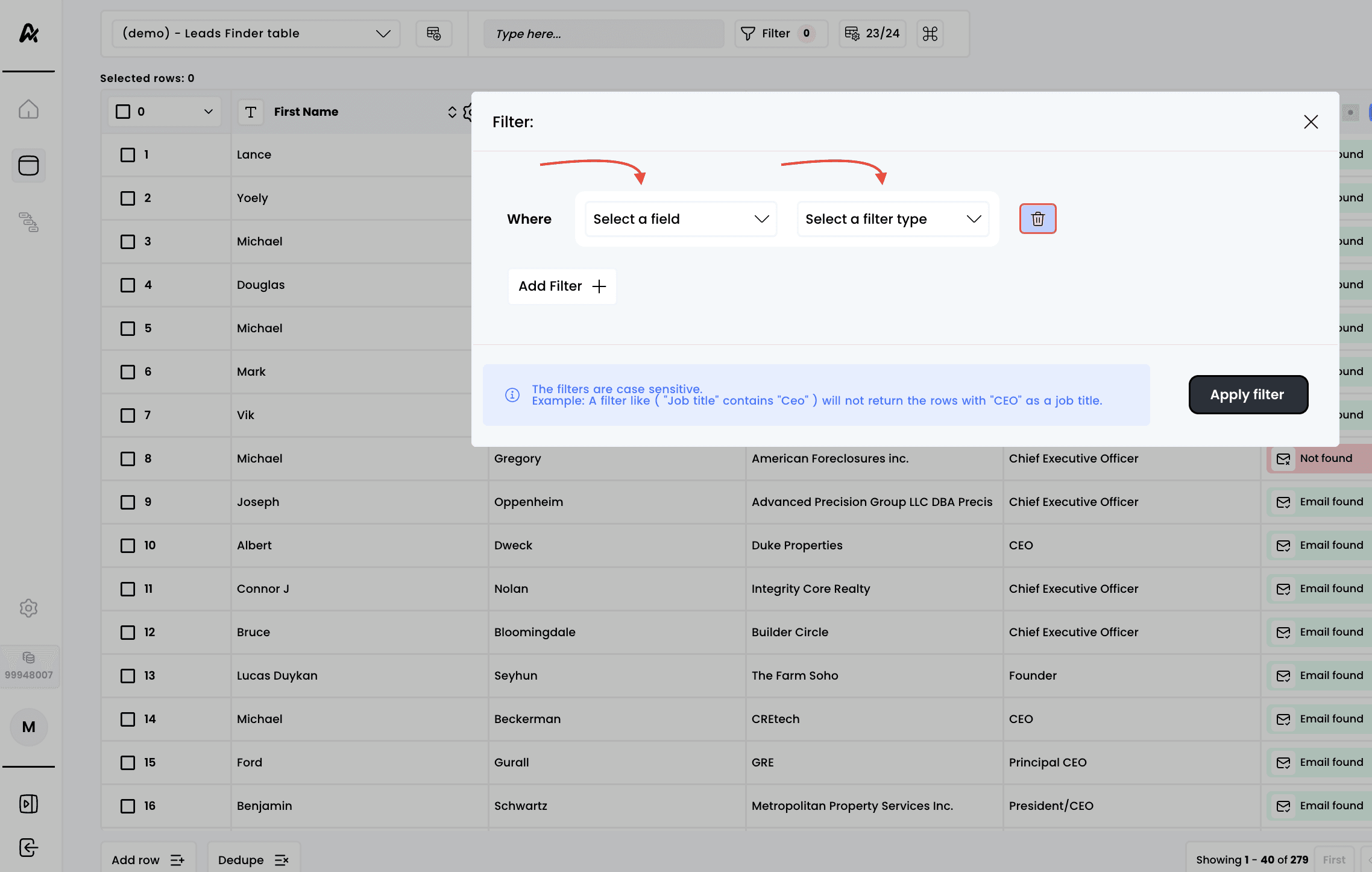
You will then have the option to select one or several columns from your table:

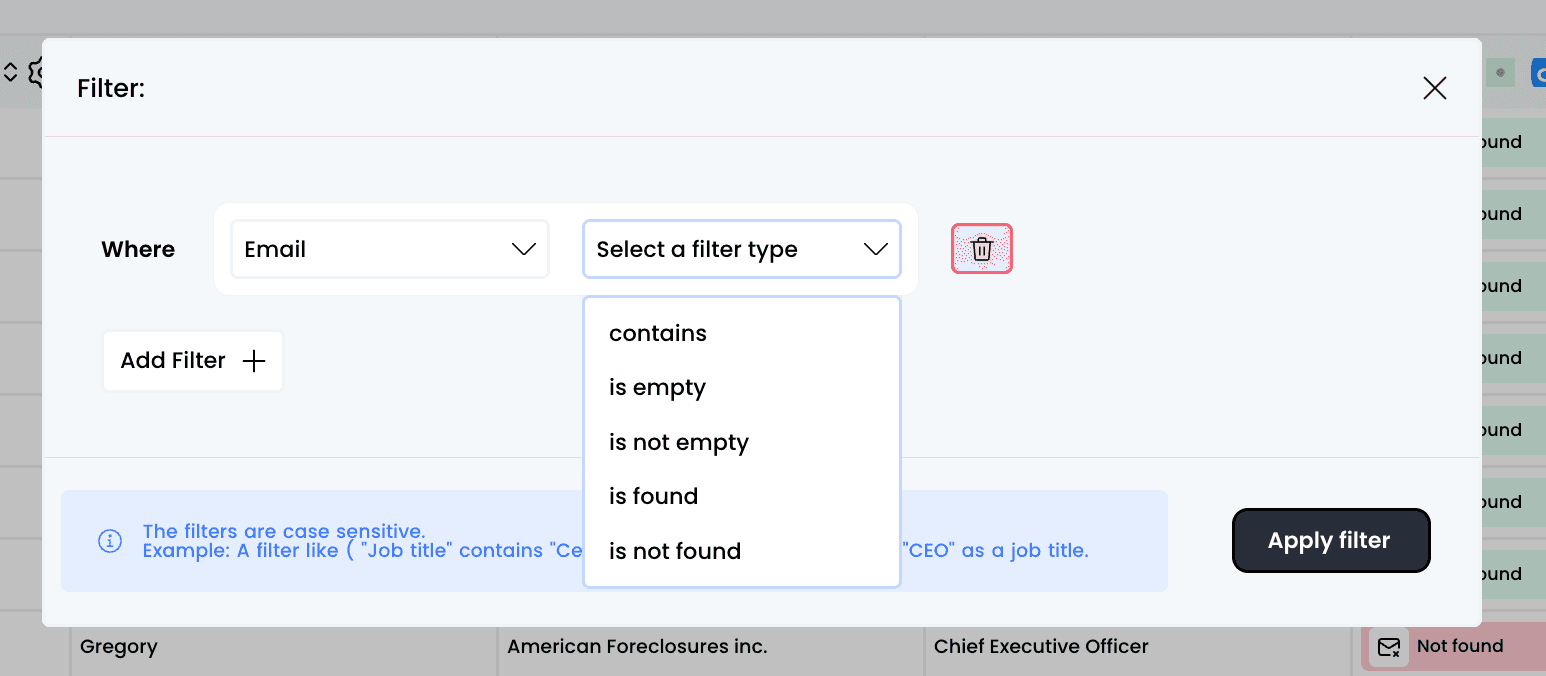
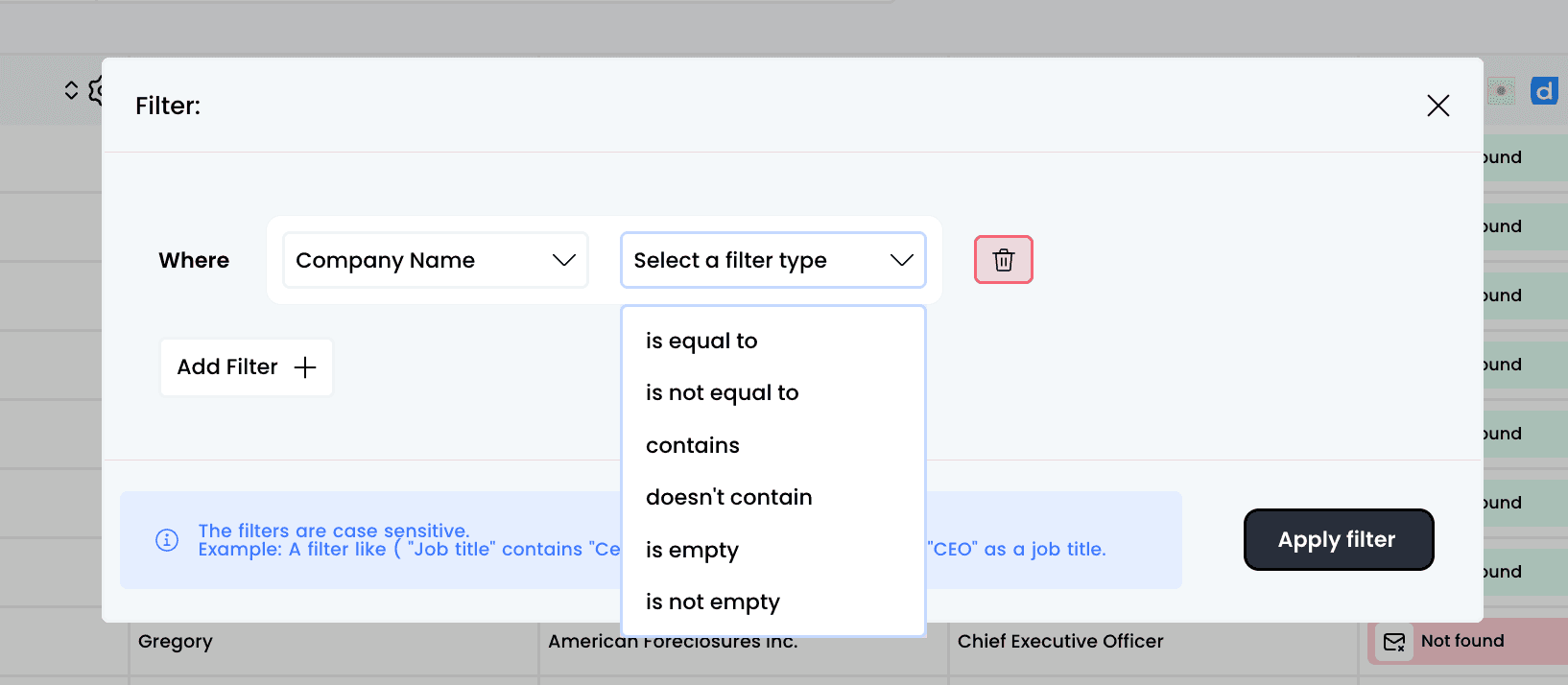
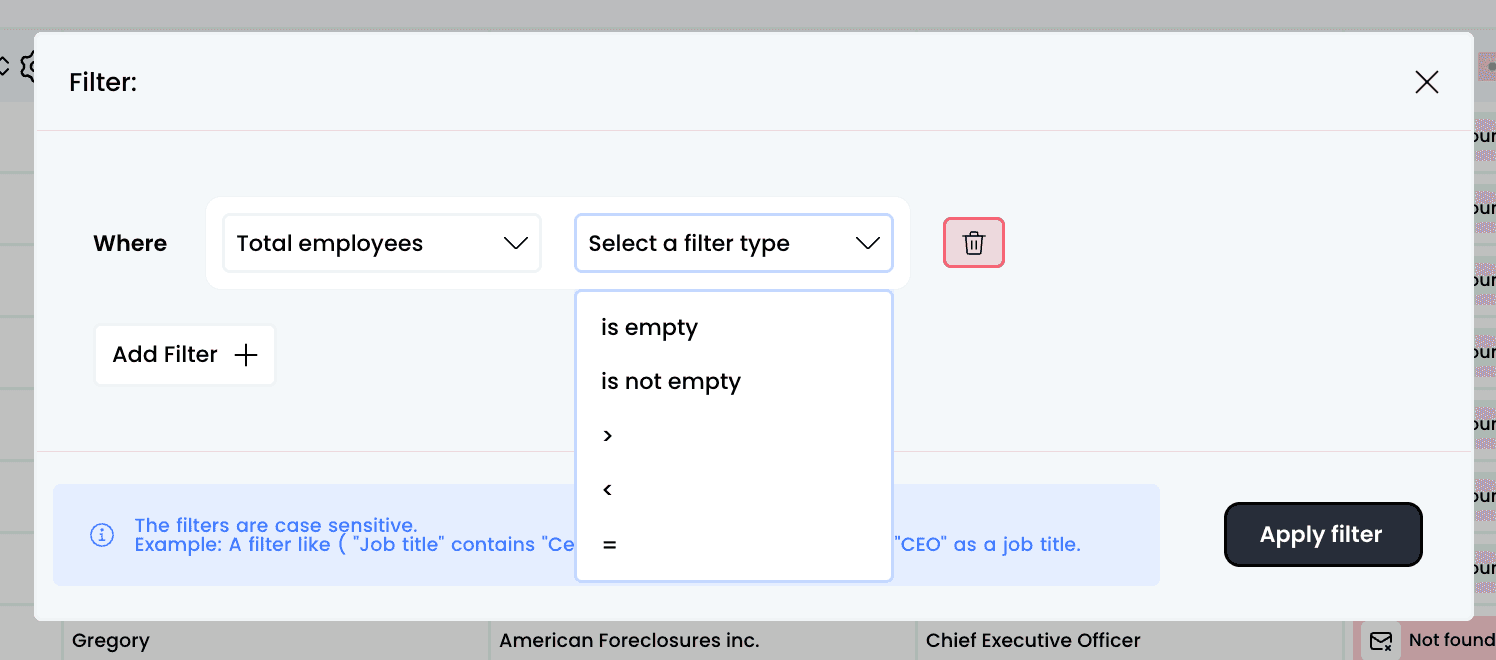
Once a column is selected, you will have several filtering options available (depending on whether it’s a text field, a numeric field, or an email field):
Example of filtering emails:

Example of filtering text field :

Example of filtering a numeric field :

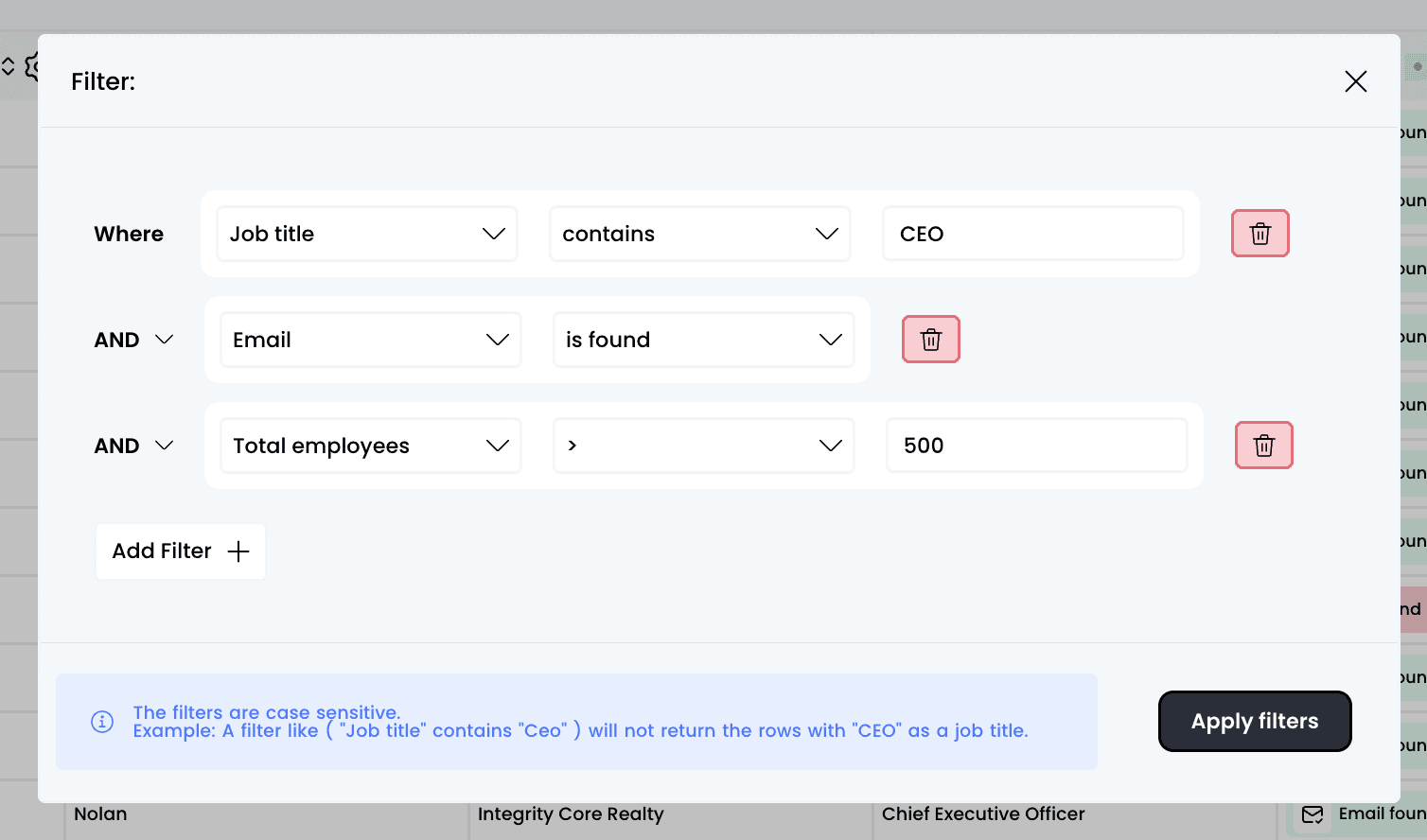
Note: the filters are case sensitive. A filter like "Job title" contains "Ceo" will not return the rows with "CEO" as a job title
You also have the option to apply multiple filters at the same time:

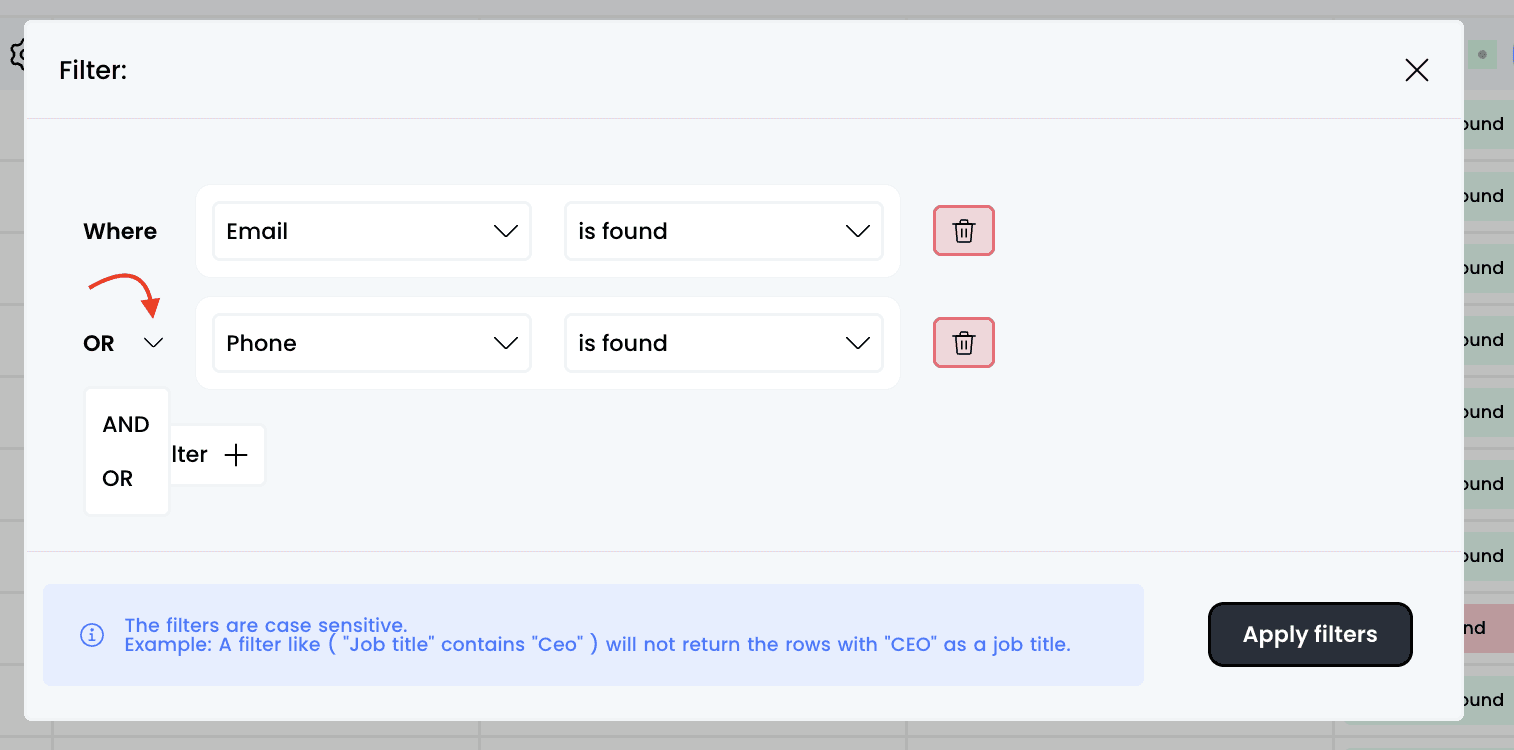
And the option to replace the “AND” field with “OR” by clicking the small arrow on the right:

Once you’ve applied your filters, all you need to do is click on “Apply filters” and the table will update
Note: the more rows the table contains, the longer it will take to load and apply the filters
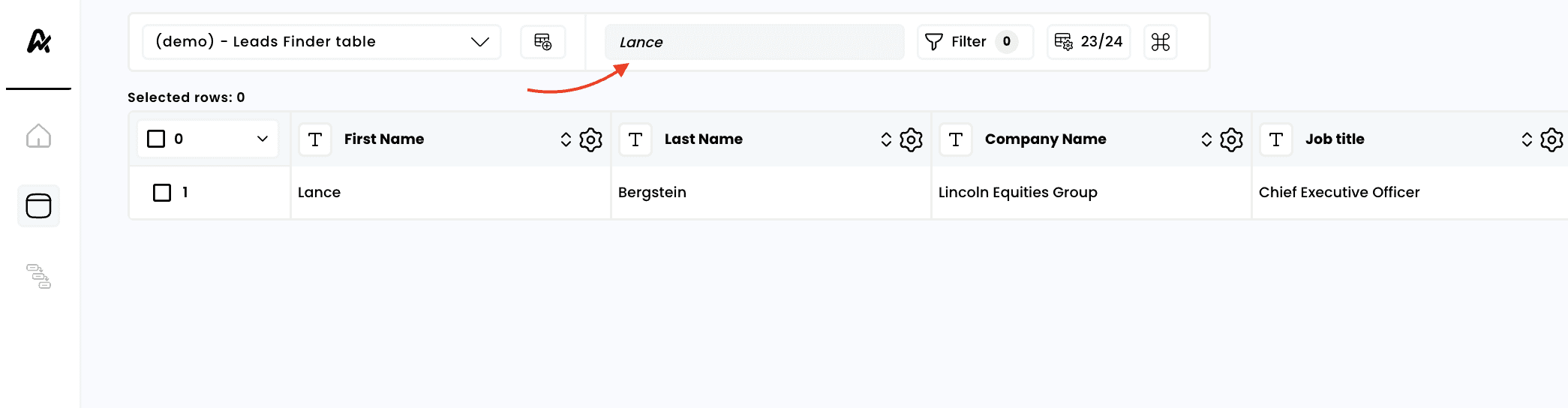
2. Another option: use the search bar to filter
You also have the option to use the search bar to look for a specific item within your table (this can be a first name, an email, a numeric field, or anything else):
Need help? Contact Support
Questions? Contact Sales