CRM integrations
Airscale for HubSpot app
The complete step-by-step guide to install and use the Airscale enrichment app on your HubSpot account.
What you'll be able to do after the setup:
Enrich any HubSpot contact with a verified email and phone number in one click
Access the enrichment directly from the contact card sidebar
Automatically update standard HubSpot properties (email, phone)
Keep a history of enrichment results on each contact
0. Prerequisites
A HubSpot account (any paid plan - Sales Hub Starter or above)
HubSpot admin rights (to install the app)
An Airscale account with an active API key - sign up here if you don't have one
1. Install the Airscale app on your HubSpot account
Click the button below to launch the secure OAuth installation flow.
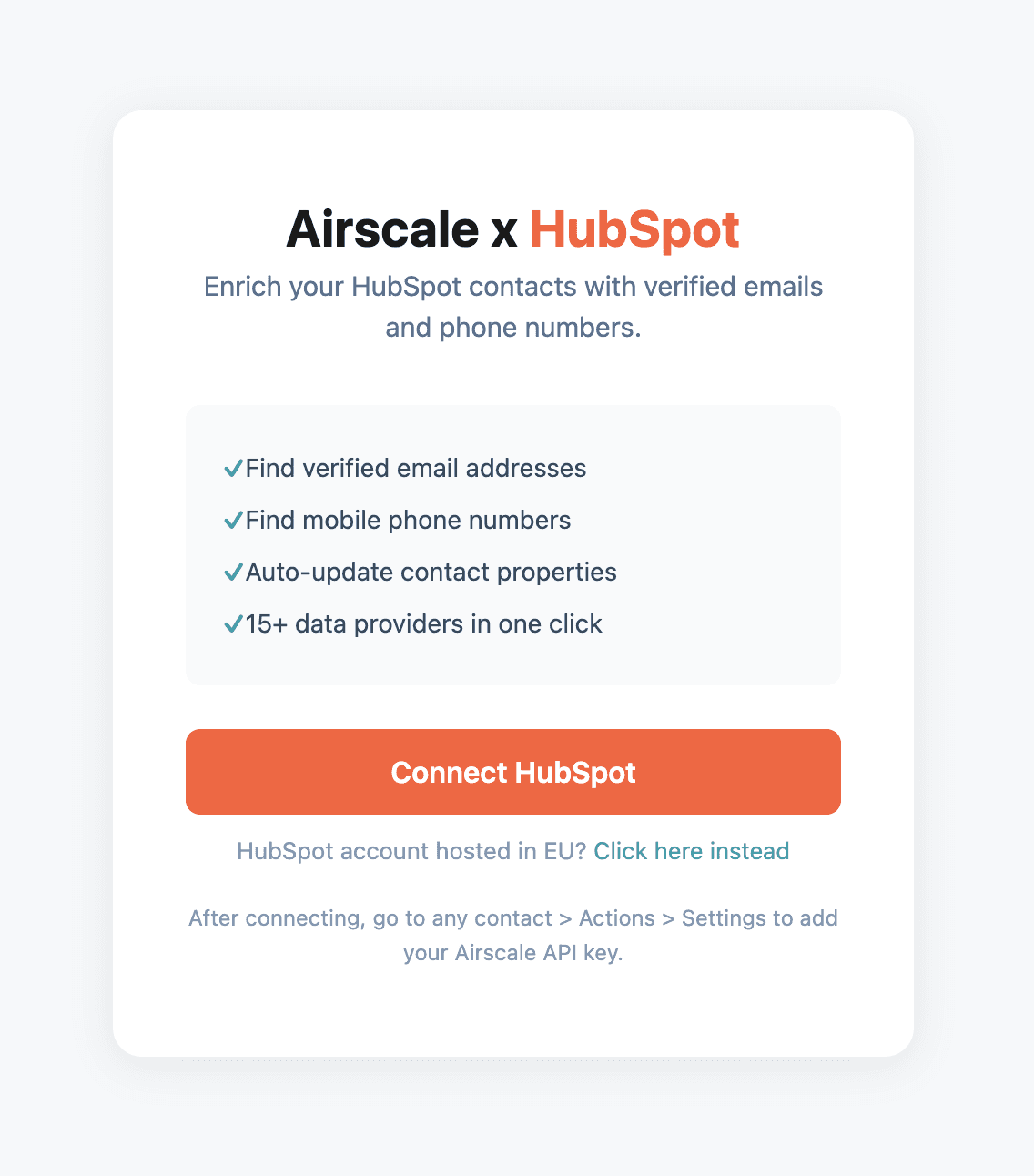
On the landing page, click Connect HubSpot. If your HubSpot account is hosted in the EU, click the EU link instead.
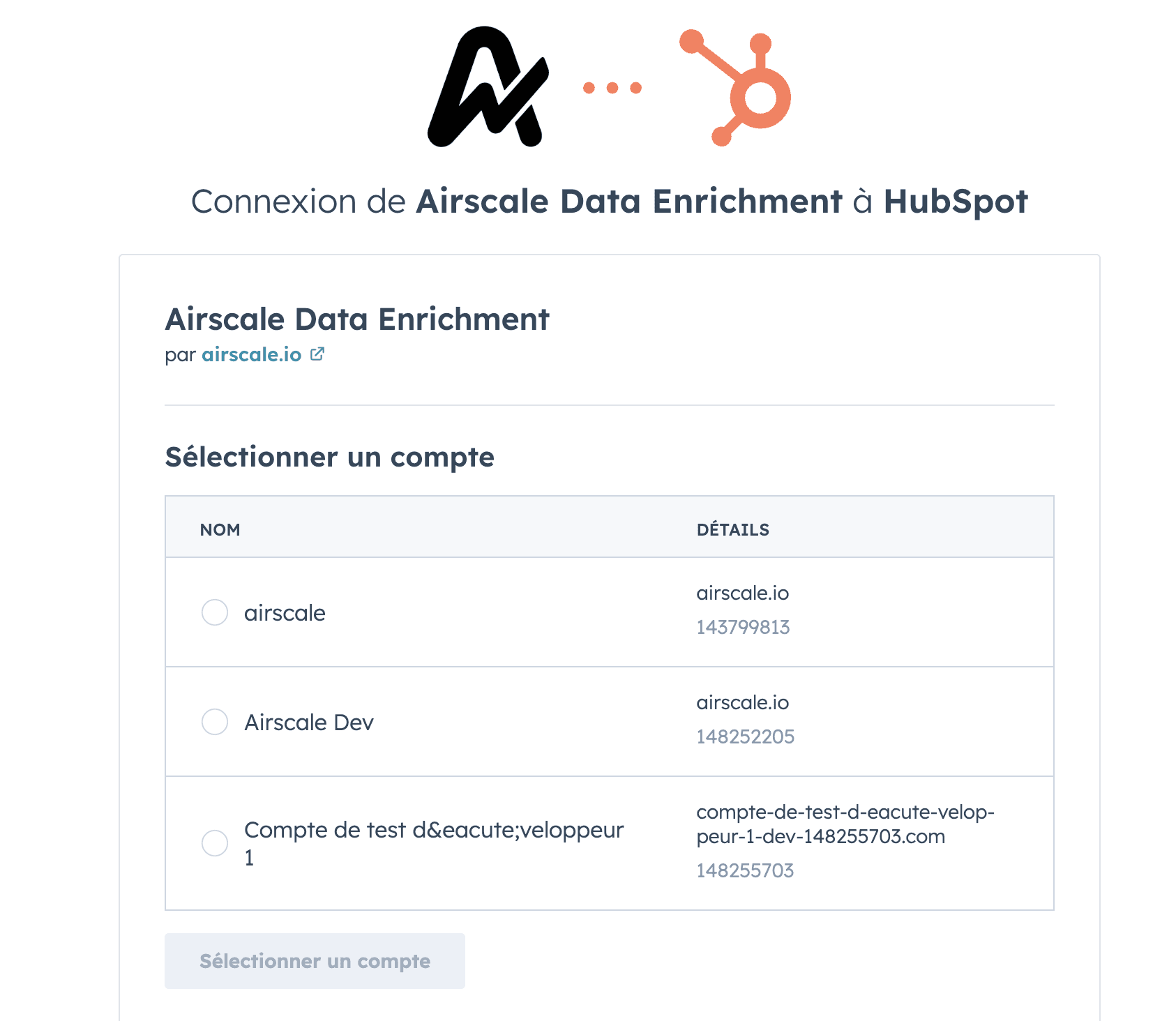
Select your HubSpot account: you'll be redirected to HubSpot. Select the HubSpot account where you want to install Airscale.
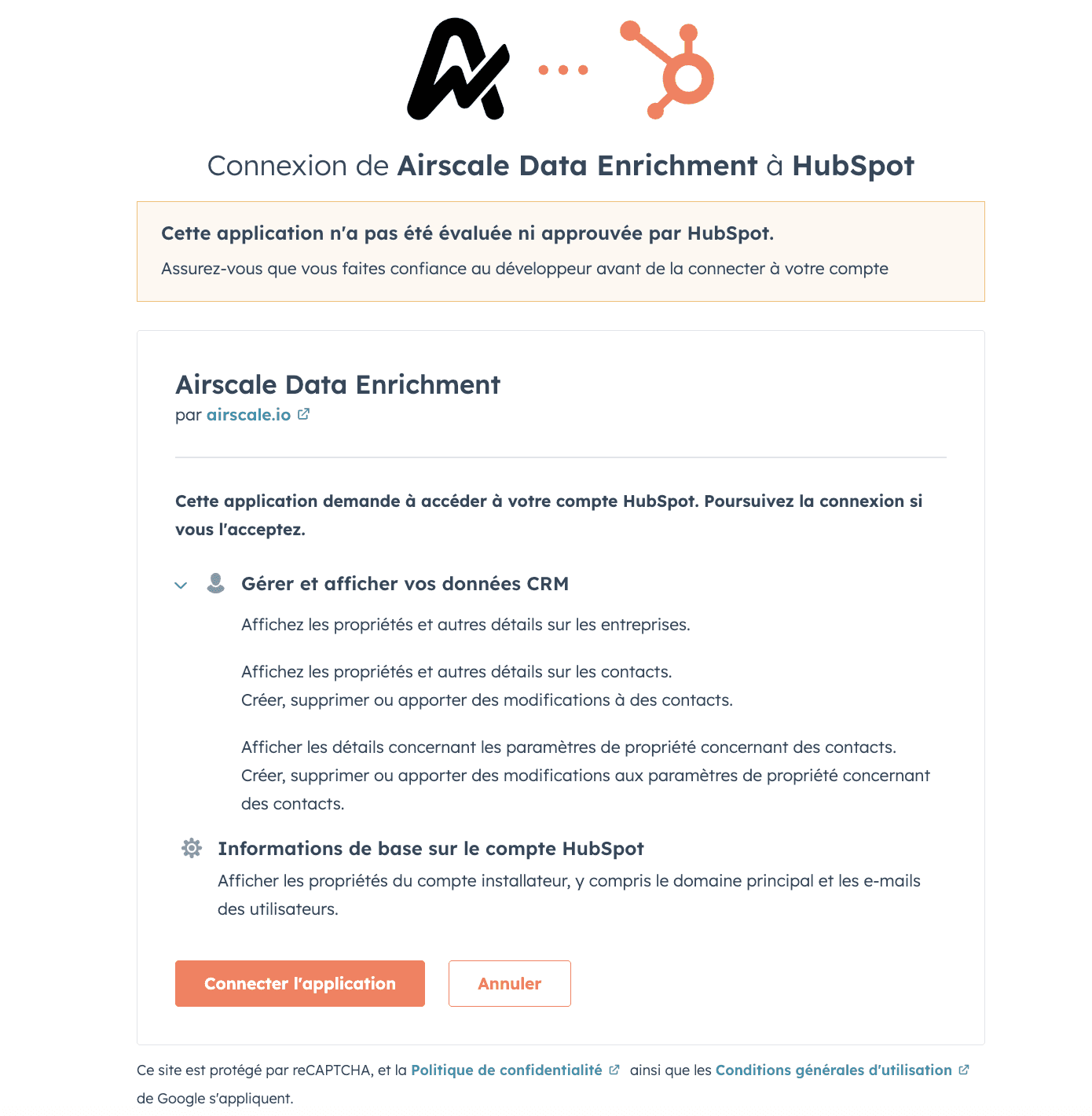
Review and approve the permissions requested (read/write contacts and companies) and click Connect app.
✔️ Installation successful. At this point, Airscale has automatically created a Airscale Enrichment property group on your contact records and added the custom properties needed (airscale_found_email, airscale_found_phone, airscale_enrichment_date, airscale_email_status).
2. Add your Airscale API key
Open any contact record in HubSpot : go to Contacts → select a contact.
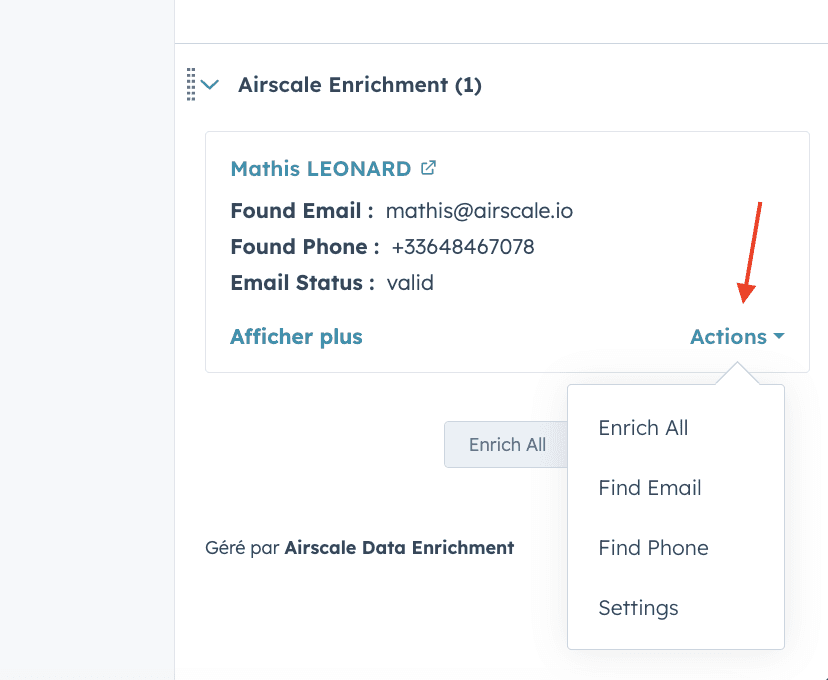
Locate the Airscale Enrichment card : in the right sidebar, scroll down until you see the Airscale Enrichment card. If you don't see it, go to step 3 to pin it properly.
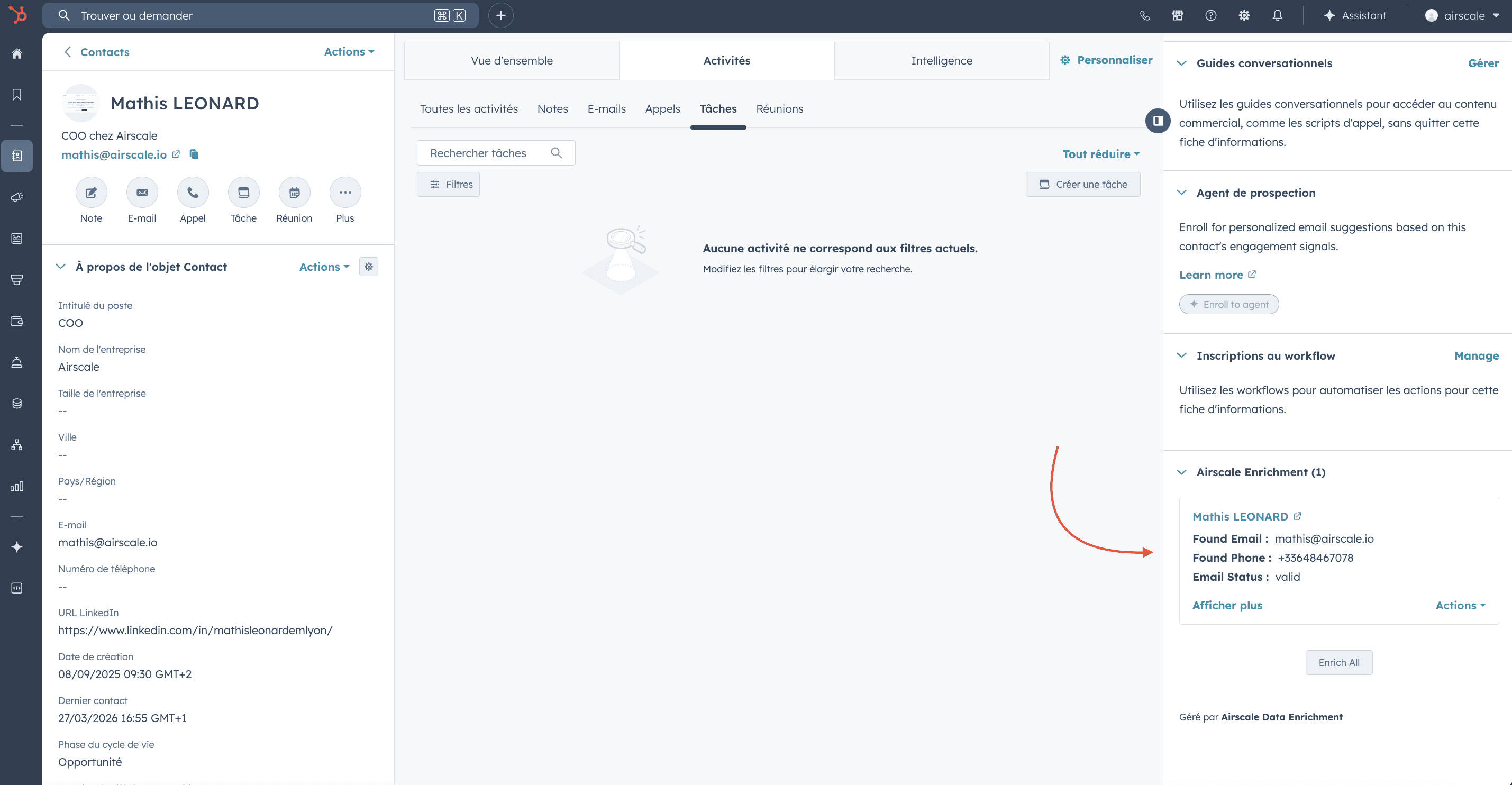
Open the Settings modal : inside the Airscale card, click Actions → Settings.
A modal opens : paste your Airscale API key into the input field. You can find your API key at app.airscale.io/dashboard?page=settings&tab=key.
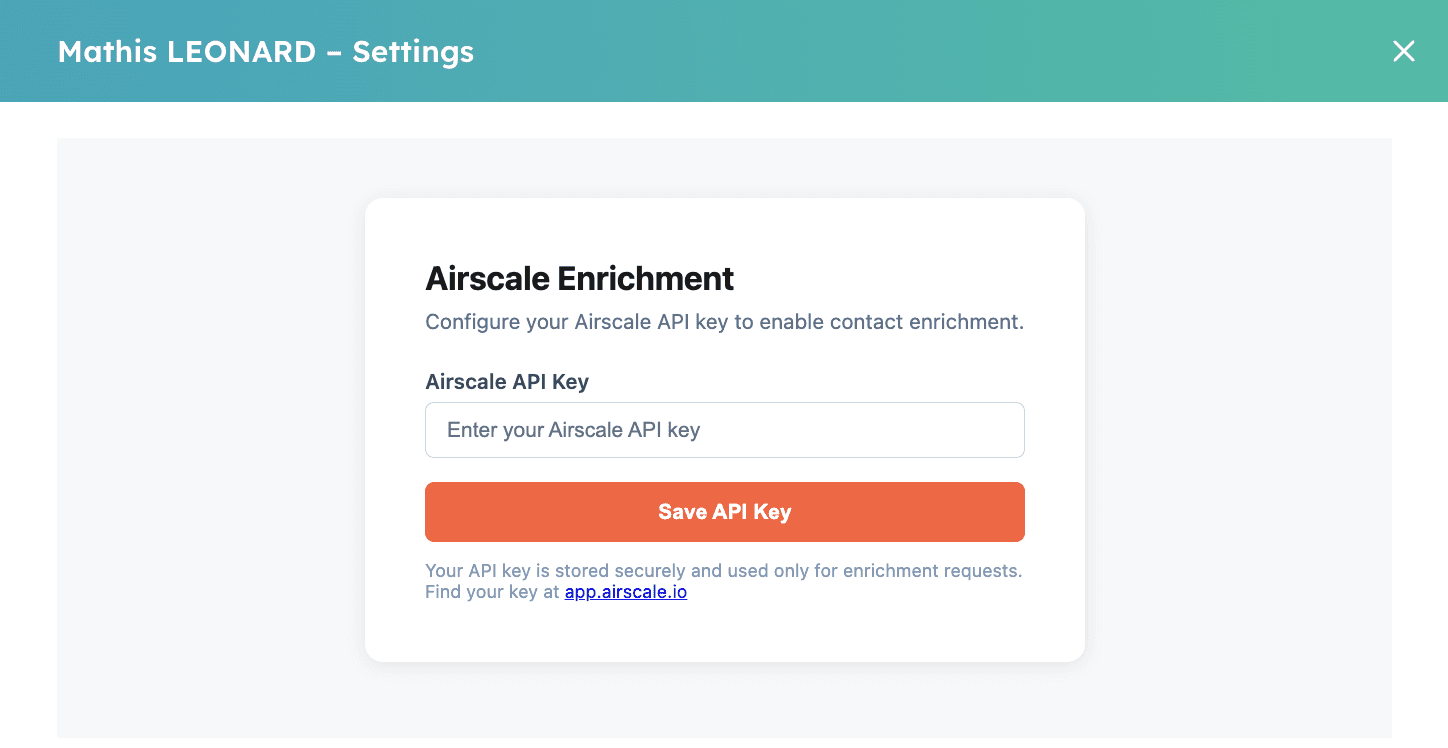
Click Save API Key. You'll see a green confirmation: "API key saved successfully." Close the modal. Setup is complete.
To remove or replace your API key later: open the Settings modal again, then click Remove API Key (you'll have to click twice within 5 seconds to confirm).
3. Pin the Airscale card to the top (recommended)
By default, HubSpot may place the Airscale card at the bottom of the sidebar. For faster access, pin it to the top.
Open any contact record : navigate to contacts and open any contact.
At the top of the contact record, click Customize (or Personnaliser in French). No need to scroll, the button is in the top nav bar.
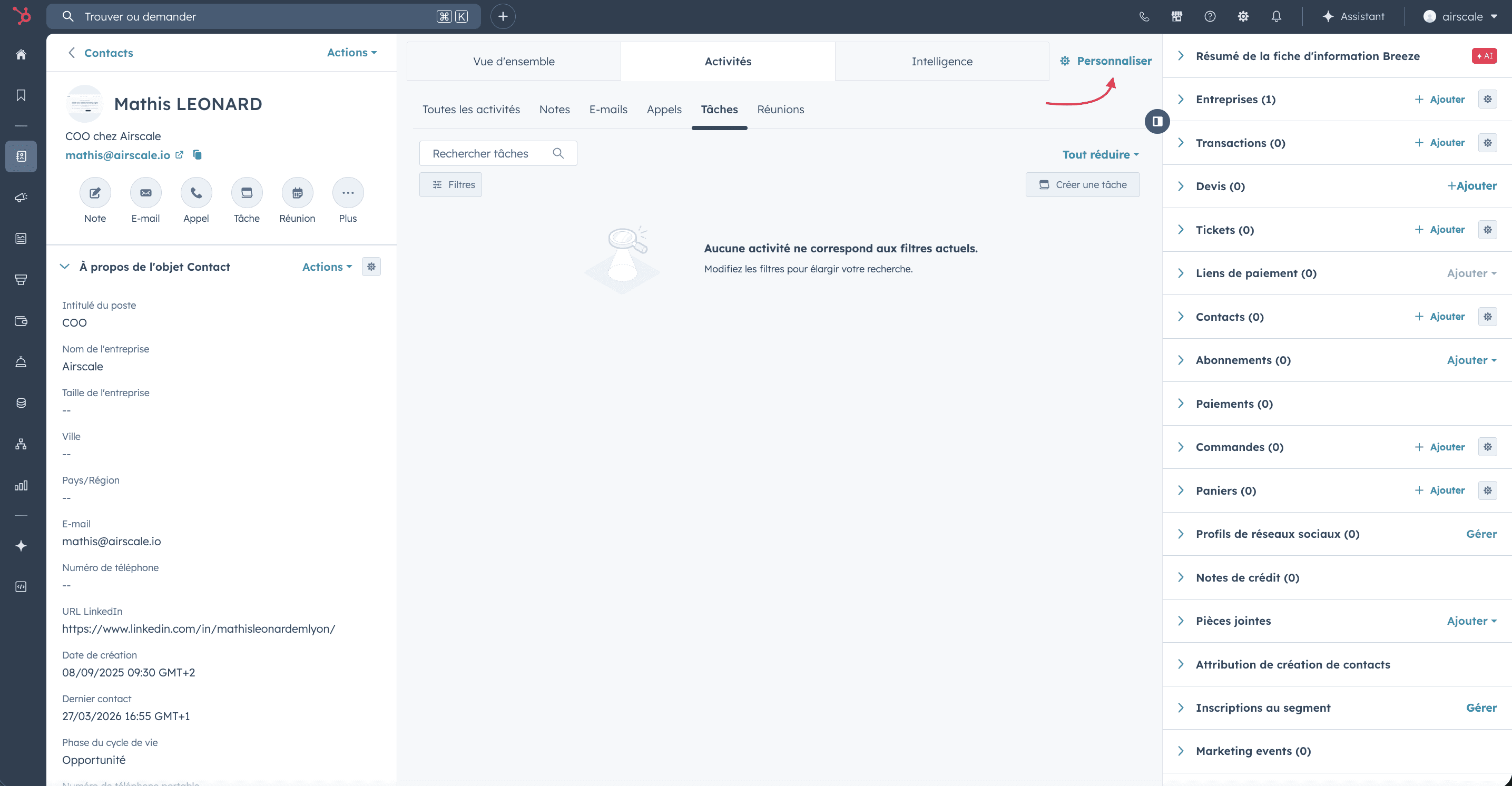
You'll be redirected to a page listing the available views. Click on the default view (or the specific view you want to customize).
In the sidebar customization panel, locate the Airscale Enrichment card and drag it to the top (or just below "About this contact").
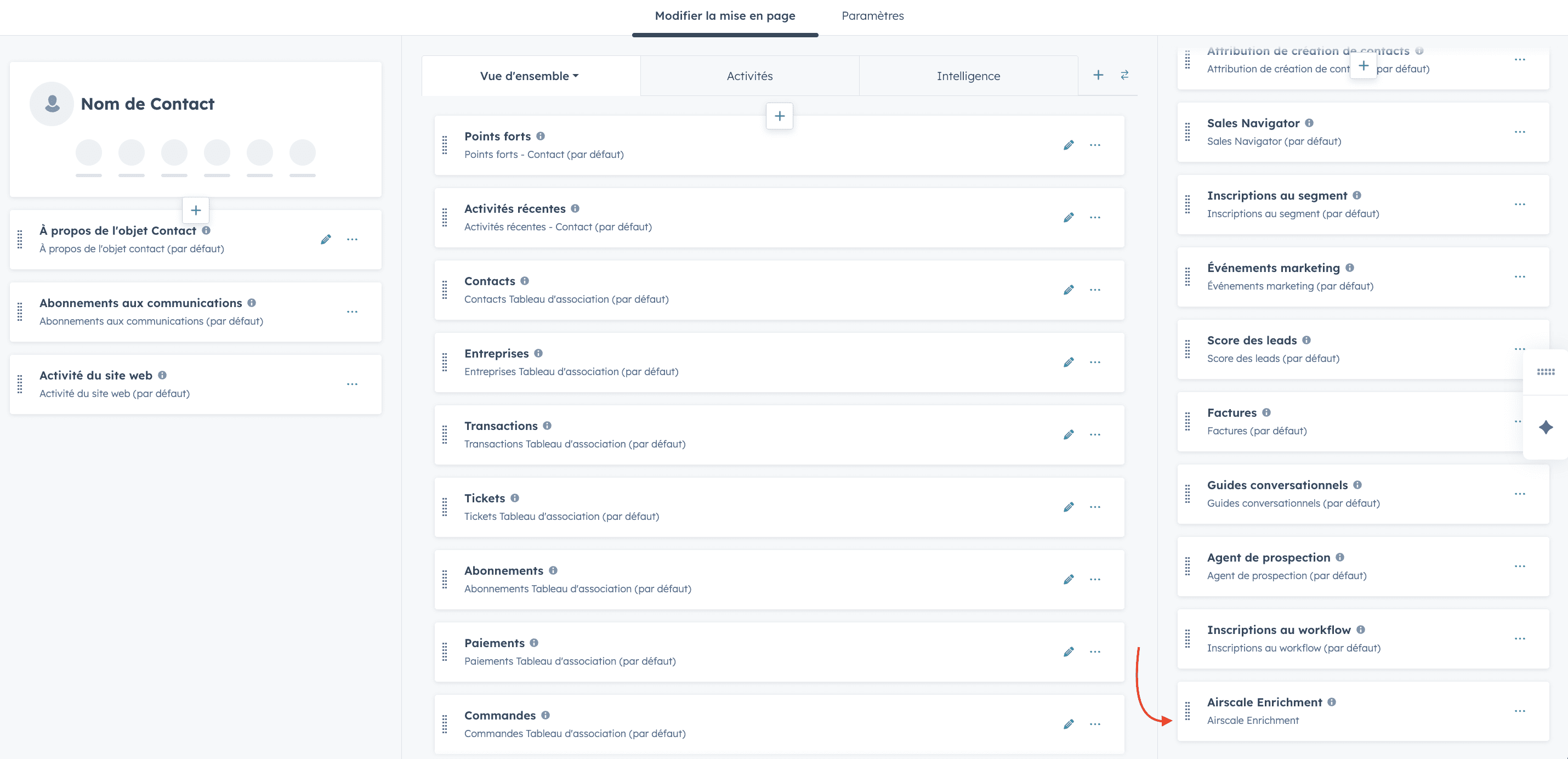
Click Save at the top right, then refresh the contact page. The Airscale card is now pinned at the top.
Tip: This layout applies to all contacts for your user. If you want to apply it team-wide, ask your HubSpot admin to update the default contact record view.
4. Run your first enrichment
Open a contact with sufficient data
Make sure the contact has at least one of the following:
First name + Last name + Company name (or company domain), OR
A LinkedIn URL in the field "URL LinkedIn"
In the Airscale card, click Actions. You have four options:
Action
What it does
Enrich all
Finds both email + phone (recommended default)
Find Email
Finds verified email only
Find Phone
Finds mobile phone only (requires LinkedIn URL)
Settings
Opens the API key configuration modal
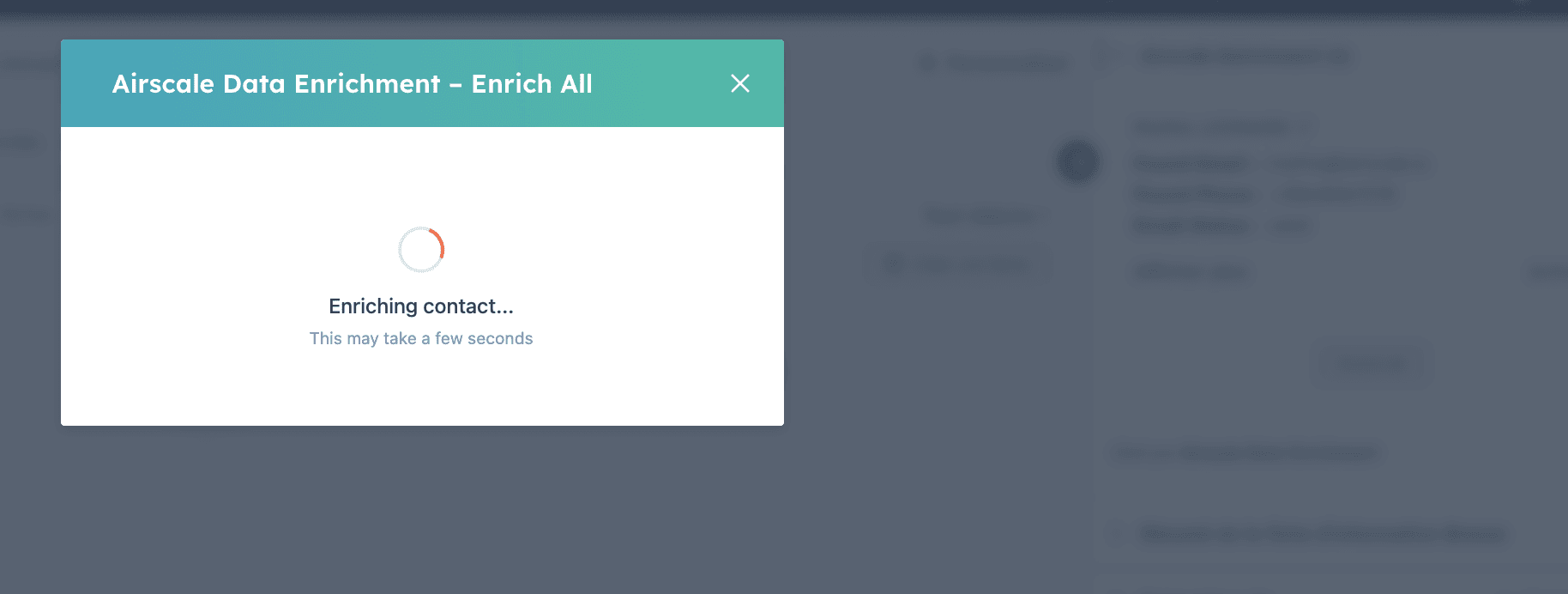
Click Enrich All (a modal opens with a spinner: "Enriching contact...").
After a few seconds, you'll see:
✅ Enrichment complete! meaning the enrichment request was successfully launched
❌ An error message if something went wrong (e.g. missing input, API key not configured)
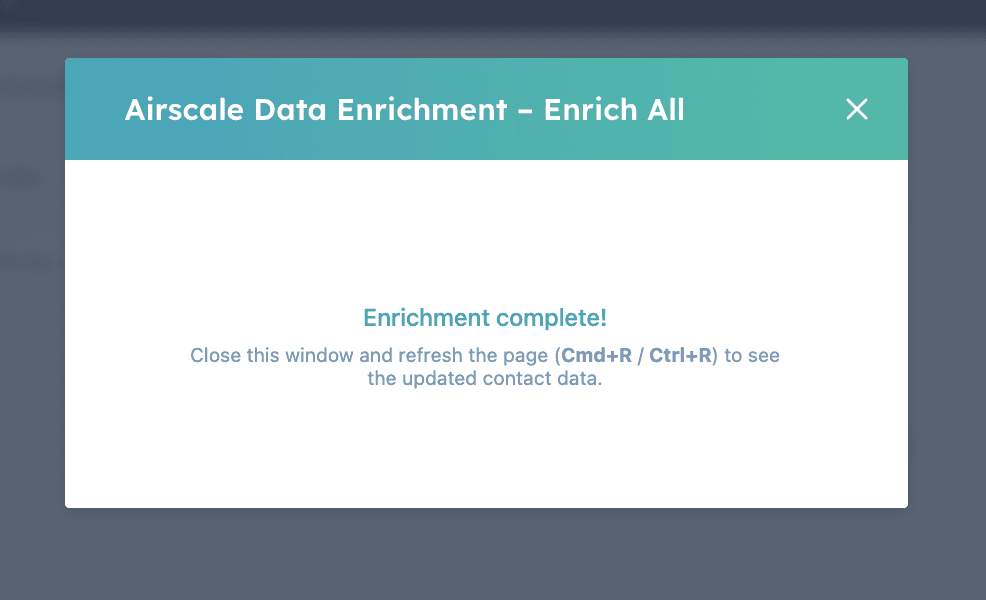
Refresh to see the new data : close the modal and press Cmd+R (Mac) or Ctrl+R (Windows) to refresh the page. The new data appears:
In the Airscale card: Found email, Found phone, Status, Enrichment date
In the left sidebar: the standard HubSpot Email and Phone fields are automatically filled if they were empty
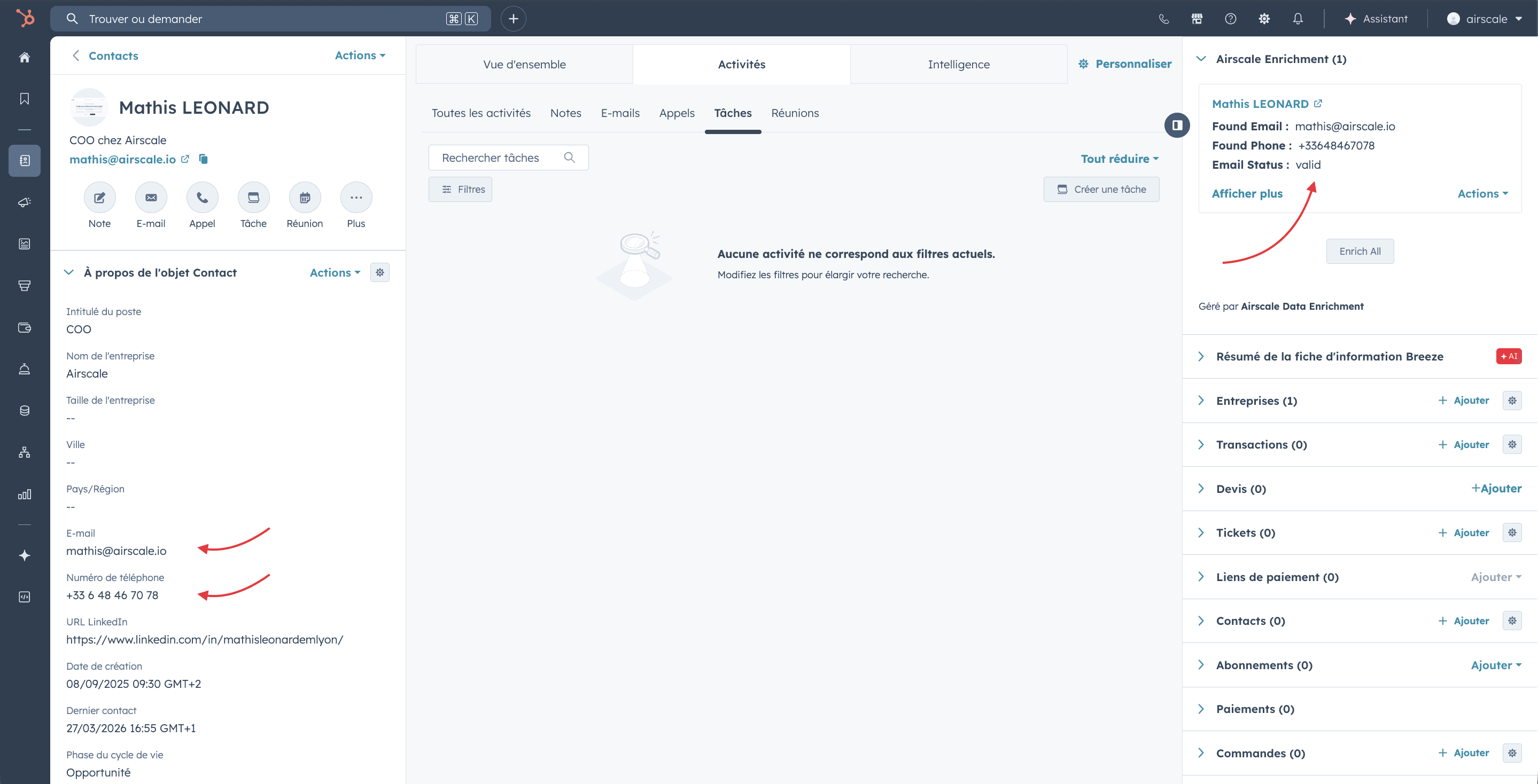
How the data is written in Hubspot
When Airscale finds an email or phone, the app writes:
Always, to Airscale custom properties
airscale_found_emailairscale_found_phoneairscale_email_status(Valid / Risky / Invalid)airscale_enrichment_date
Only if empty, to standard HubSpot properties
email(Email)phone(Phone number — "Numéro de téléphone")
This means your existing data is never overwritten. To force an update of the standard field, use Actions → Override Email or Override Phone once enrichment has run.
5. Automate enrichment with Workflows
Once the Airscale app is installed and your API key is configured, you can automate enrichment at scale using HubSpot Workflows. Instead of enriching contacts one by one, you can set up workflows that automatically enrich contacts based on triggers you define.
Requirement: HubSpot Workflows with custom actions require Sales Hub Pro/Enterprise, Marketing Hub Pro/Enterprise, or Operations Hub Pro/Enterprise. This feature is not available on Starter plans.
Available workflow actions
Airscale adds three actions to the HubSpot workflow builder:
Action | What it does |
|---|---|
Airscale - Enrich All | Finds both email + phone (recommended) |
Airscale - Find Email | Finds verified email only |
Airscale - Find Phone | Finds mobile phone only (requires LinkedIn URL on the contact) |
How to create an enrichment workflow
Create a new workflow: go to Automation → Workflows → Create workflow. Select Contact-based as the object type.
Choose a trigger: select the condition that will start the enrichment. Common examples:
Contact is added to a list: enrich a batch of imported contacts
Contact fills out a form: enrich inbound leads automatically
Contact property changes: e.g., when a LinkedIn URL is added
Manual trigger: enrich contacts on demand by selecting them manually
Add the Airscale action: click the + button to add an action. In the search bar, type "Airscale". You'll see the three Airscale actions under Integrated apps → Airscale Data Enrichment. Select the one you want (we recommend "Airscale - Enrich All" for most use cases).
Activate the workflow: click Review and activate in the top right corner. Review the settings and click Activate. Contacts matching your trigger will now be automatically enriched.
Example use cases
Use case | Trigger | Action |
|---|---|---|
Enrich all new leads from a form | Contact fills out form "Contact Us" | Airscale - Enrich All |
Enrich imported contact lists | Contact is added to list "New Import" | Airscale - Enrich All |
Find phone when LinkedIn is added | LinkedIn URL becomes known | Airscale - Find Phone |
Enrich contacts entering a deal stage | Associated deal moves to "Discovery" | Airscale - Find Email |
Credit usage: Each enrichment in a workflow uses credits from your Airscale account, just like manual enrichment. If your credits run out, the workflow action will return an error for remaining contacts but will not block the rest of the workflow. Monitor your balance at app.airscale.io.
Troubleshooting
The Airscale card doesn't appear on the contact page
On the contact record, click Customize in the top nav → select your view → make sure "Airscale Enrichment" is enabled.
If it's not in the list, the install may have failed. Reinstall via the install link.
"API key not configured" error when enriching
Open the Airscale card → Actions → Settings → paste a valid API key from app.airscale.io/dashboard?page=settings&tab=key.
"Not enough data to find email" error
The contact is missing required input. Make sure one of the following is filled:
First name + Last name + (Company name OR company domain)
A LinkedIn URL in
hs_linkedin_urlorlinkedin_url
Tip: associate a company to the contact in HubSpot. Airscale will use the associated company's domain automatically.
"LinkedIn URL is required for phone enrichment"
Airscale's phone enrichment requires a LinkedIn profile URL to work. Add it to the contact in the URL LinkedIn field.
The enriched data doesn't show up
Make sure you refreshed the page (Cmd+R / Ctrl+R) after closing the enrichment modal. HubSpot doesn't auto-refresh the sidebar.
I don't have enough Airscale credits
Check your balance at app.airscale.io. Top up via your account settings or contact us.
Need help? Contact Support
Questions? Contact Sales