Note: the required input to leverage this enrichment is a phone number

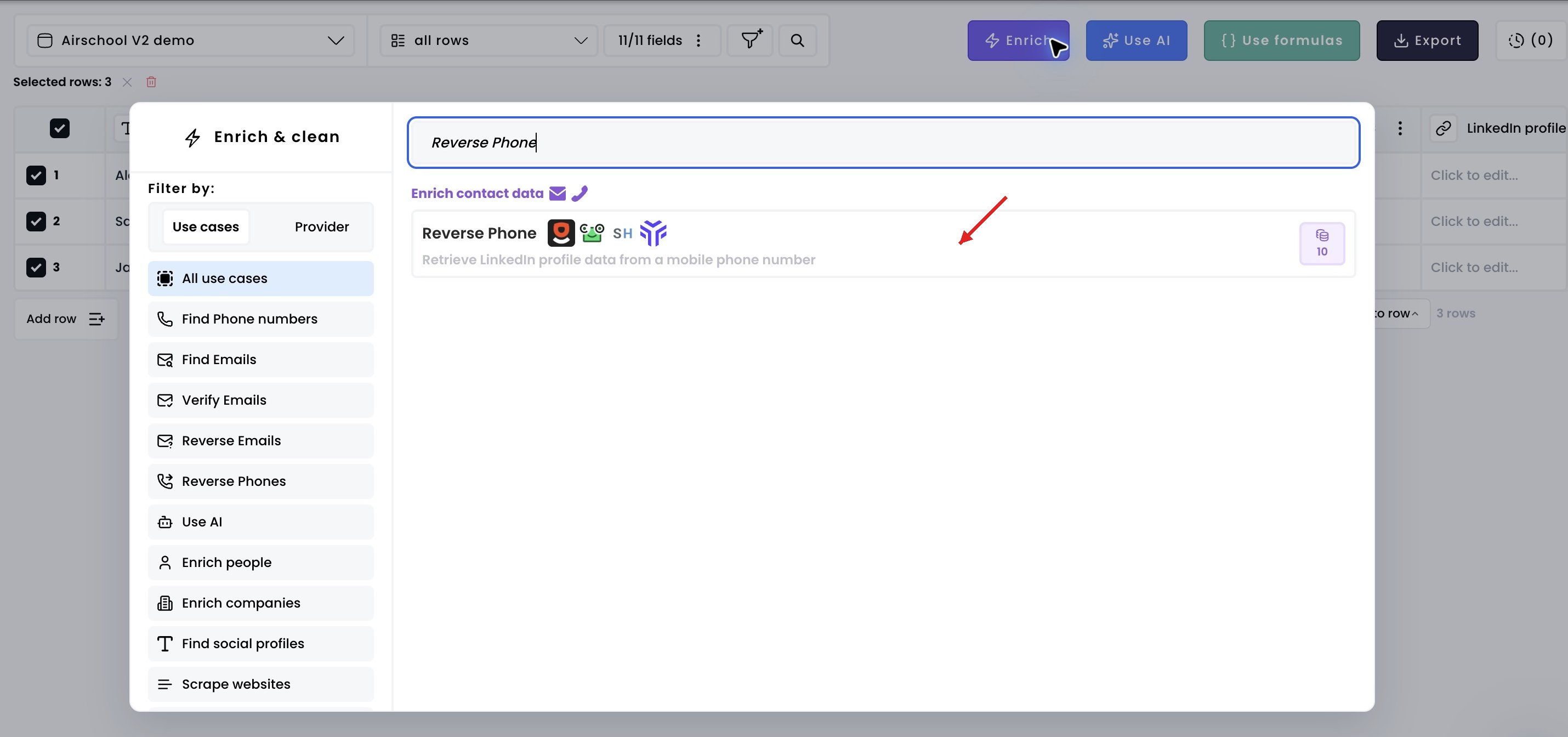
1. Select the enrichment

Click Enrich, then choose Reverse Phone. Find LinkedIn profile data from a phone number — 1. Select the enrichment in Airscale V2 — red arrow highlights the control to use
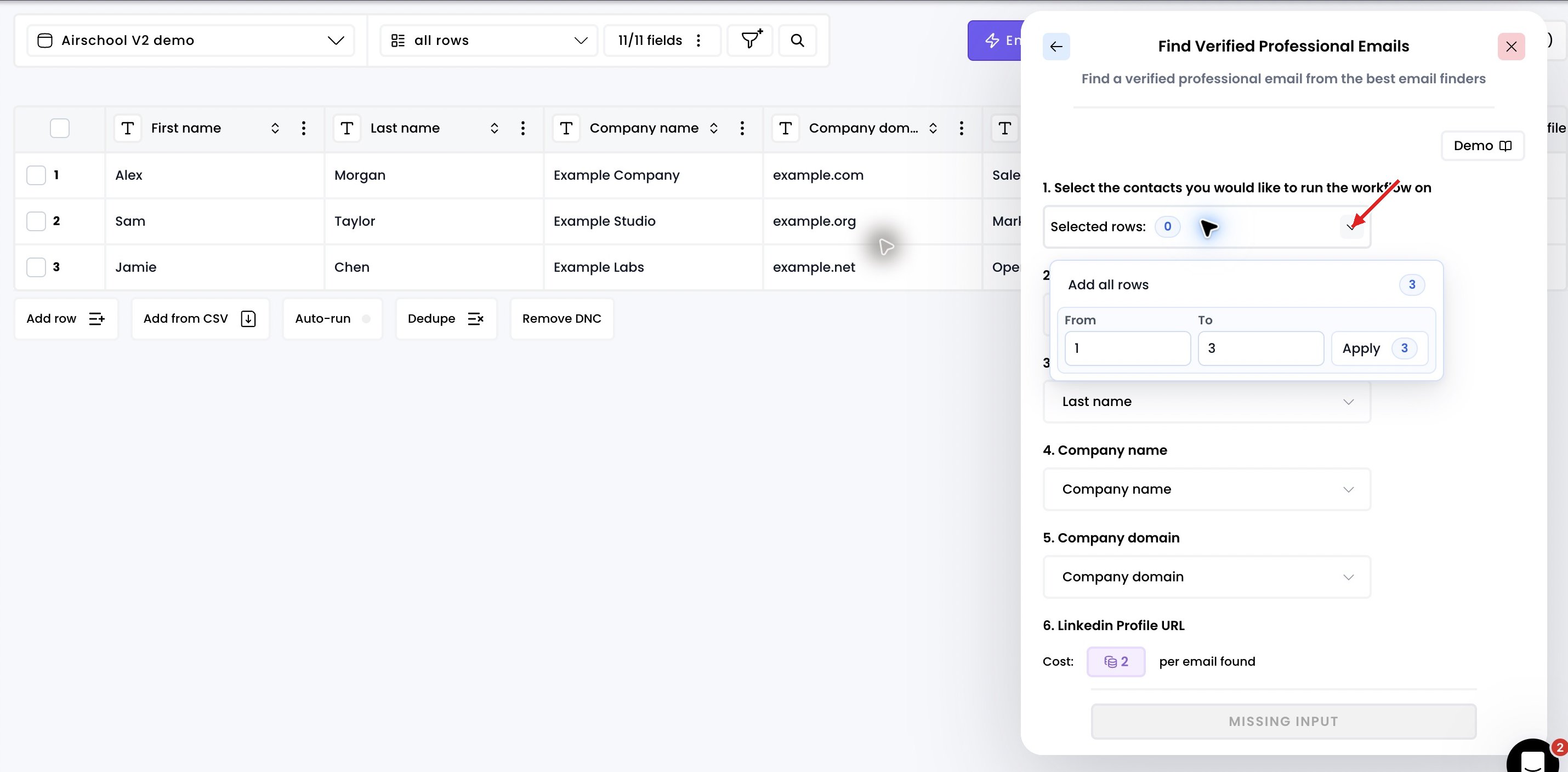
2. Choose which rows to enrich

Open Selected rows and choose Add all rows, or enter a range and click Apply. Find LinkedIn profile data from a phone number — 2. Choose which rows to enrich in Airscale V2 — red arrow highlights the control to use
3. Select the right input

Select the column containing the phone numbers and choose the output column. Find LinkedIn profile data from a phone number — 3. Select the right input in Airscale V2 — red arrow highlights the control to use
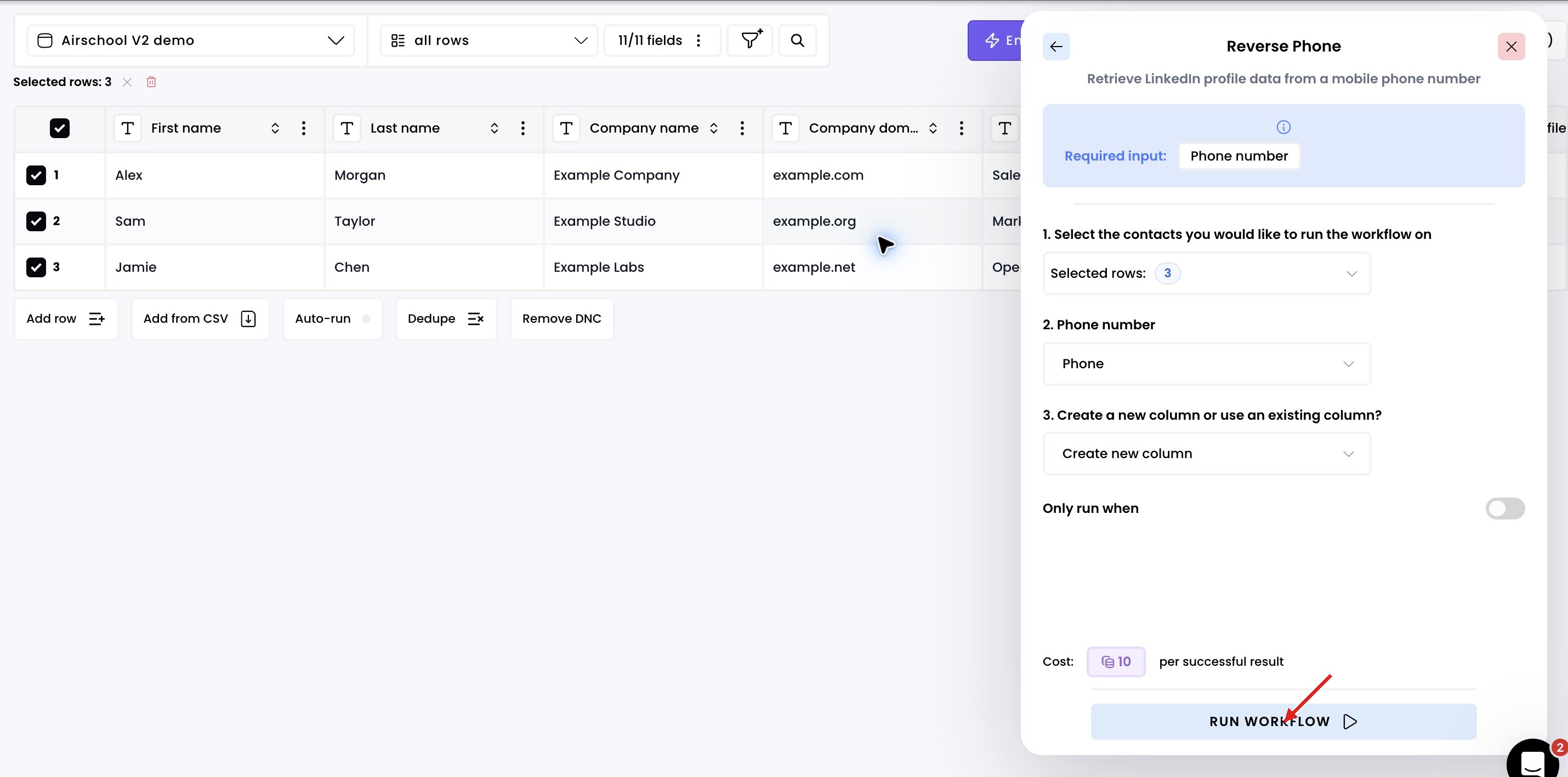
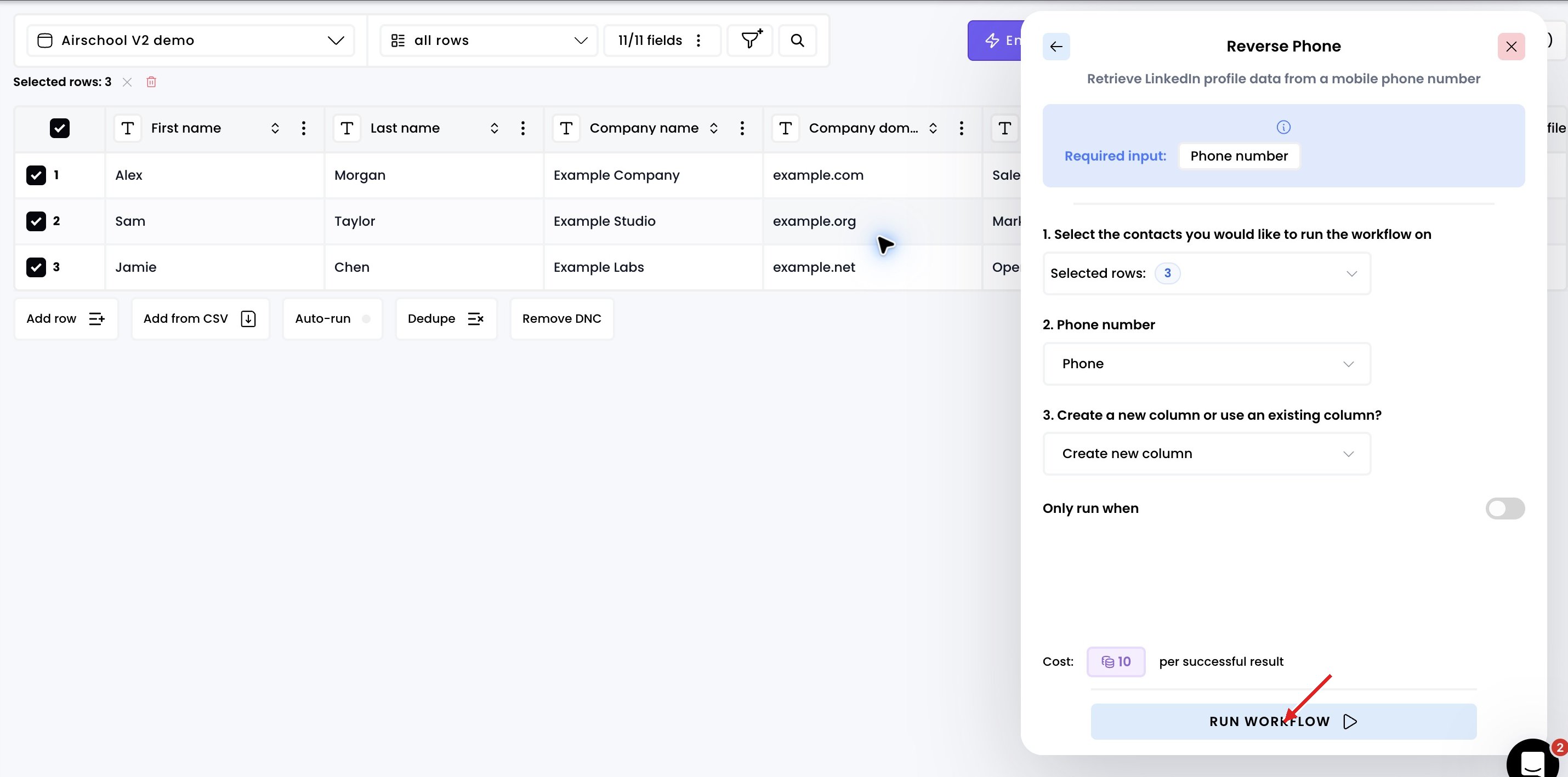
4. Run the workflow

Check the selected rows and input mapping, then click Run workflow. Find LinkedIn profile data from a phone number — 4. Run the workflow in Airscale V2 — red arrow highlights the control to use
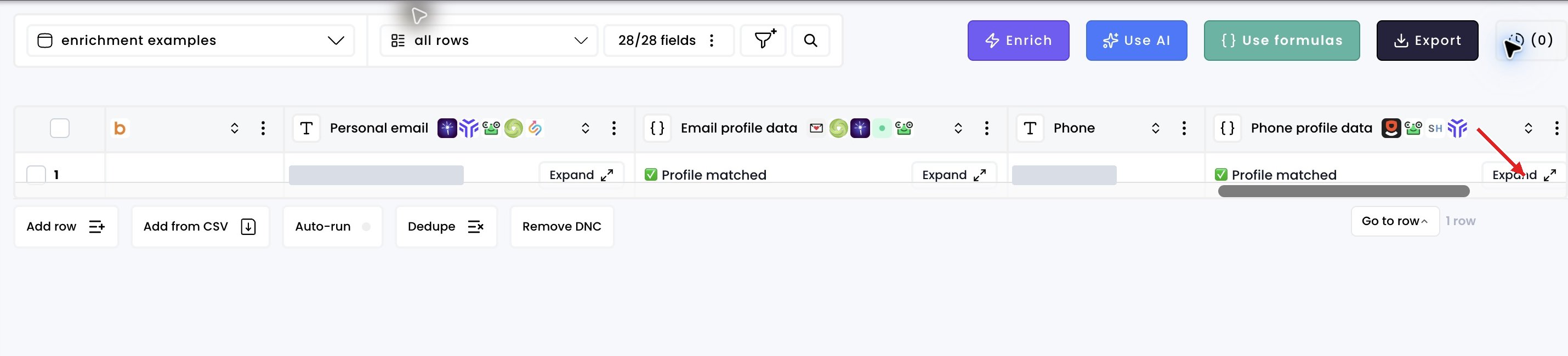
5. Access the results

Click Expand in the result cell to open the JSON mapper. Search for a field, such as First name. Find LinkedIn profile data from a phone number — 5. Access the results in Airscale V2 — red arrow highlights the control to use
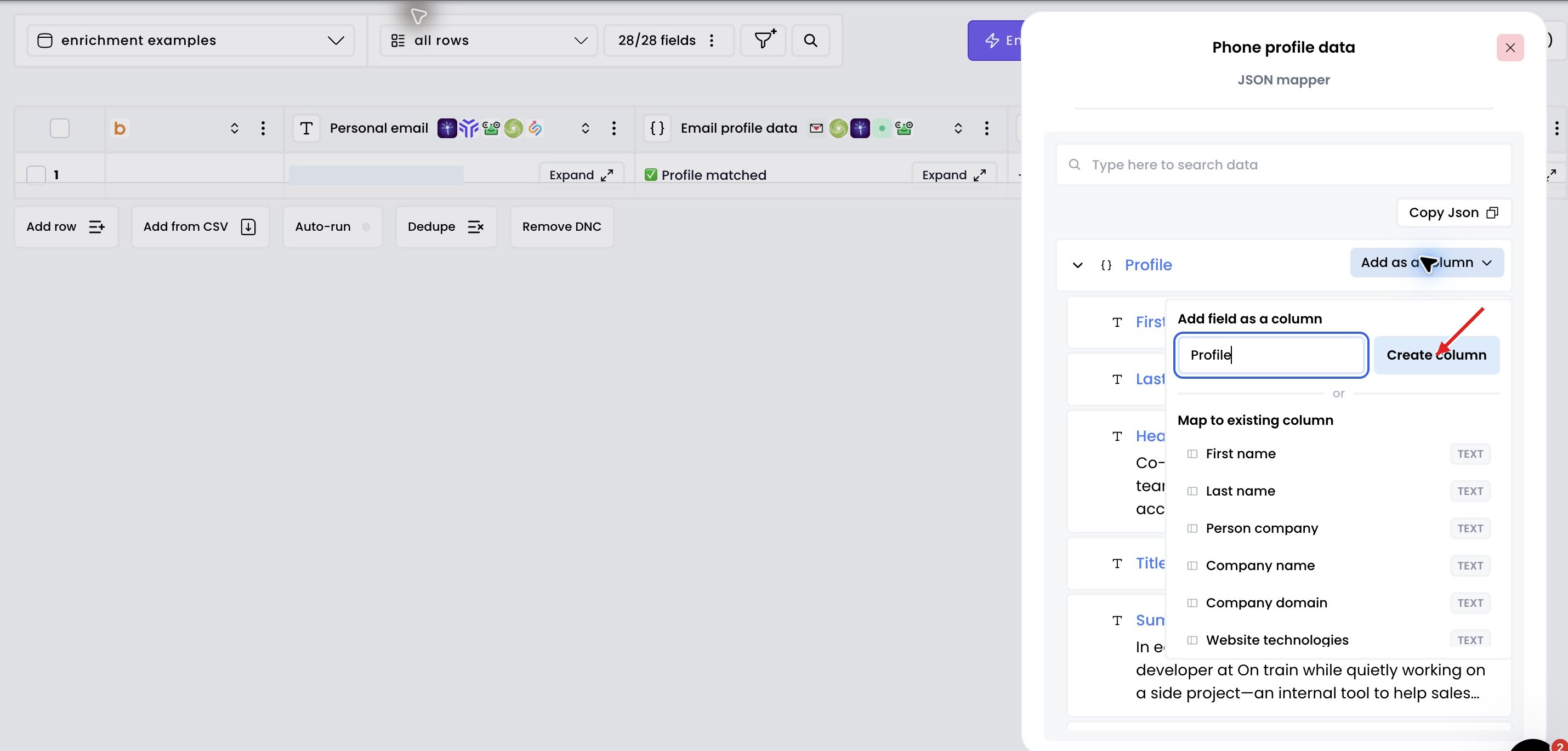
6. Add columns for any data points you want about the profile

Choose Add as a column beside a field, then create a new column or map it to an existing one. Find LinkedIn profile data from a phone number — 6. Add columns for any data points you want about the profile in Airscale V2 — red arrow highlights the control to use