

- You can import up to 1,000 companies per search
- Large searches may take several minutes to complete
- Use specific filters to get the most relevant companies within the limit
0. Prerequisites
- An active Airscale account with remaining credits
- Clear understanding of your ideal customer profile (ICP)
- Specific criteria for your target companies (industry, size, location, etc.)
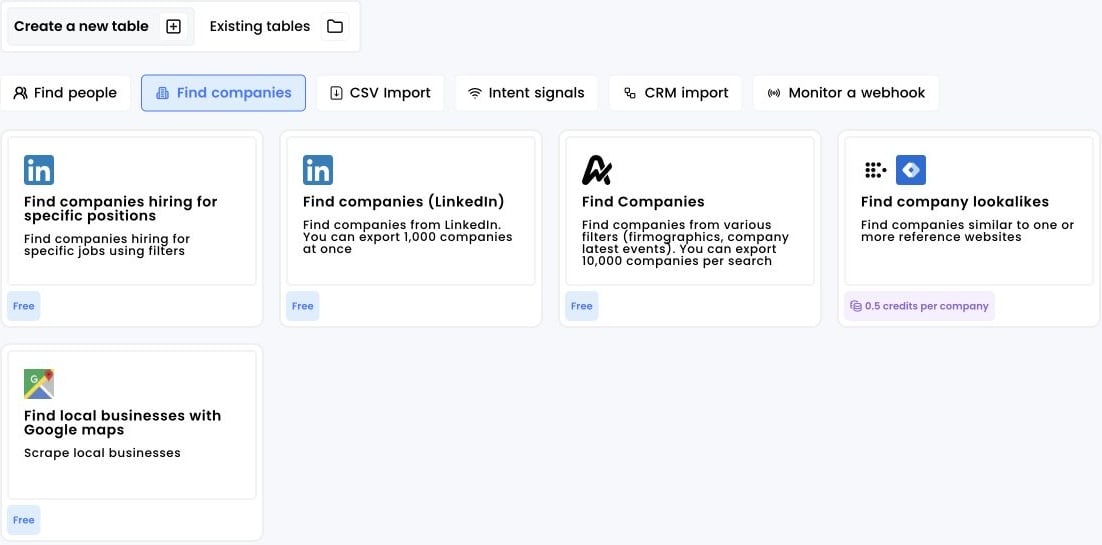
1. Click on “Find Companies (LinkedIn)”
- Log into your Airscale dashboard
- Select “Find companies (LinkedIn)” from the available modules (look for the LinkedIn logo)
2. Apply your search filters
Configure your search criteria using the comprehensive filter system:Basic company filters
Location targeting:- Include country, state, or city: Enter geographic filters like “United States,” “California,” or “San Francisco”
- Multiple locations can be added for broader coverage
- Use specific cities for territory-based targeting
- Select from dropdown of industry categories
- Multiple industries can be selected
- Focus on industries where your solution has proven success
- Choose from predefined ranges: 1-10, 11-50, 51-200, 201-500, 501-1000, 1001-5000, 5001-10000
- Select multiple ranges for broader targeting
- Consider your product’s sweet spot for company size
Advanced growth and financial filters
Company size growth:- Set minimum and maximum growth percentages
- Target companies experiencing specific growth rates
- Filter for rapidly expanding businesses or stable enterprises
- Select from dropdown of buying intent and behavioral signals
- Target companies showing signs of growth, hiring, or technology adoption
- Focus on businesses likely to be in market for your solution
- Set minimum and maximum revenue in millions
- Target companies within specific revenue ranges
- Align with your solution’s typical customer spend capacity
Department-specific filters
Company department count:- Select specific departments (Sales, Marketing, Engineering, etc.)
- Set minimum and maximum employee counts within those departments
- Target companies with mature departments in your focus area
- Choose specific departments experiencing growth
- Set minimum and maximum growth percentages for those departments
- Identify companies actively hiring in relevant areas
- Select a specific range of follower count on LinkedIn
- Target companies with strong brand presence or niche audiences
- Filter by growth stage based on community size
Advanced keyword targeting
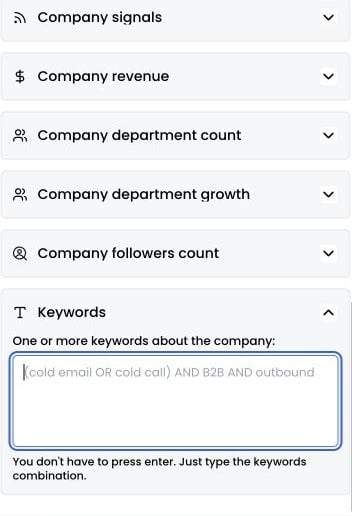
Keywords filter: Use sophisticated keyword combinations to find companies with specific business models or strategies. Business model examples:freemium AND self-serve AND PLG(Product-Led Growth companies)subscription AND SaaS AND upselling(SaaS businesses)shopify AND DTC AND ecommerce(Direct-to-consumer brands)
(cold email OR cold call) AND B2B AND outbound(Outbound sales focus)(ABM OR demand gen) AND enterprise(Account-based marketing)
AI AND chatbot AND customer support(AI customer service)fintech AND KYC AND compliance(Financial technology)logistics AND warehouse AND last mile(Supply chain/logistics)
sustainability AND green energy AND carbon(Green technology)
3. Visualize your results
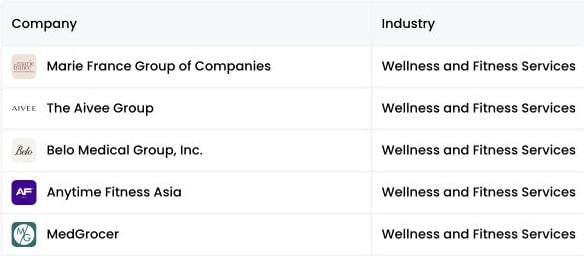
Click “PREVIEW COMPANIES” to see a sample of your search results.-
Review the preview data:
- Company names: check if businesses match your target market
- Industry classifications: verify industry relevance to your solution
- Company descriptions: review business models and focus areas
- LinkedIn profile URLs: validate company authenticity and presence
-
Check the results summary:
- Total number of matches
- Quality of matches against your ICP
- Distribution across industries and business models
-
Refine filters if needed:
- Adjust keyword combinations based on company descriptions
- Modify industry selections for better targeting
- Update size or revenue ranges based on company profiles
- Fine-tune growth criteria for ideal timing
4. Click on “Load all companies to a table” to create a new table
Review your final filter settings one more time- Click “Load all companies to a table” to export the full search
-
Monitor the import progress:
- Progress indicator shows “Importing: X/1000”
- Percentage completion display
- Real-time status updates
-
Wait for completion:
- You can navigate away during processing
