Note: the required input to fetch company insights is a LinkedIn company URL

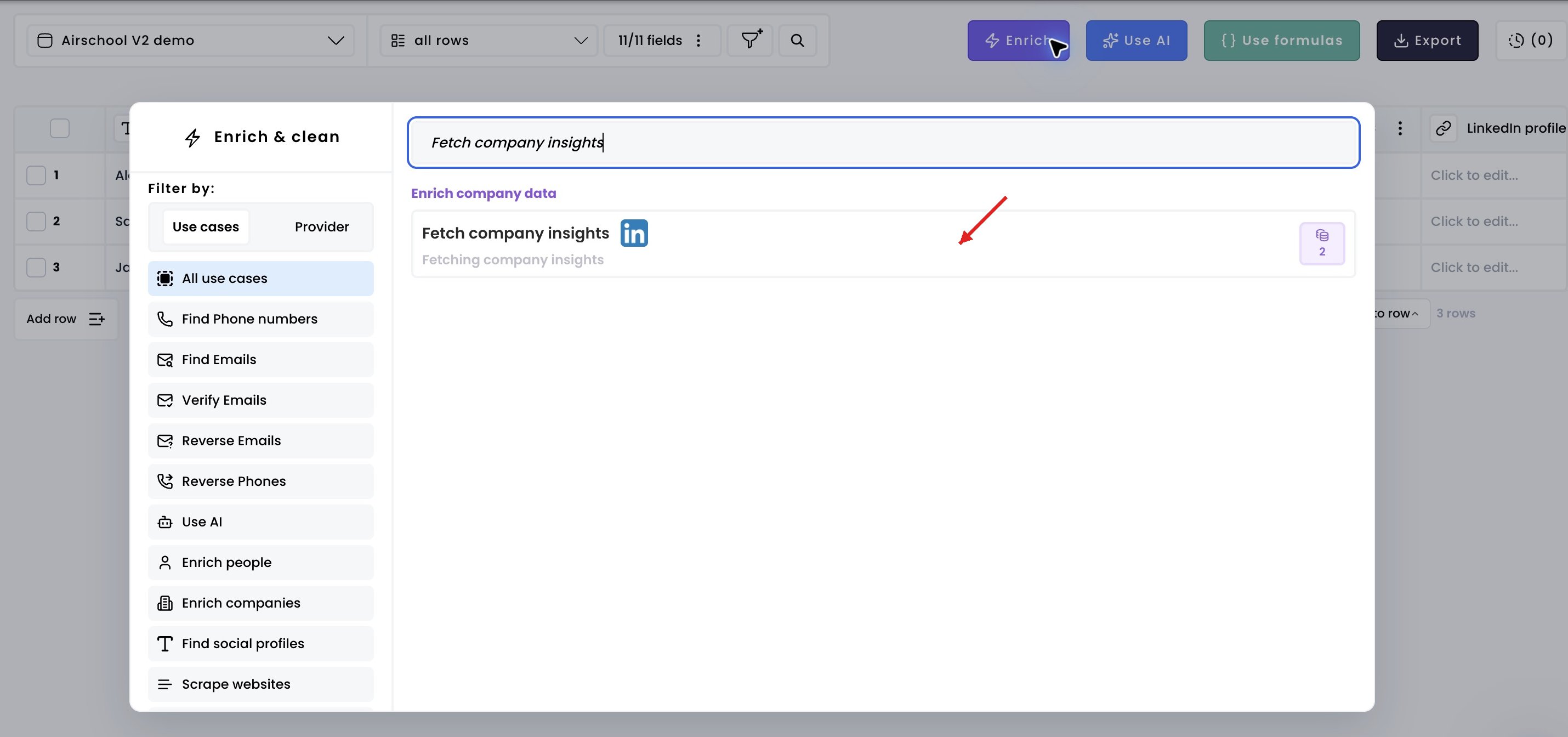
1. Select the enrichment

Click Enrich, then choose Fetch company insights. Fetch company insights — 1. Select the enrichment in Airscale V2 — red arrow highlights the control to use
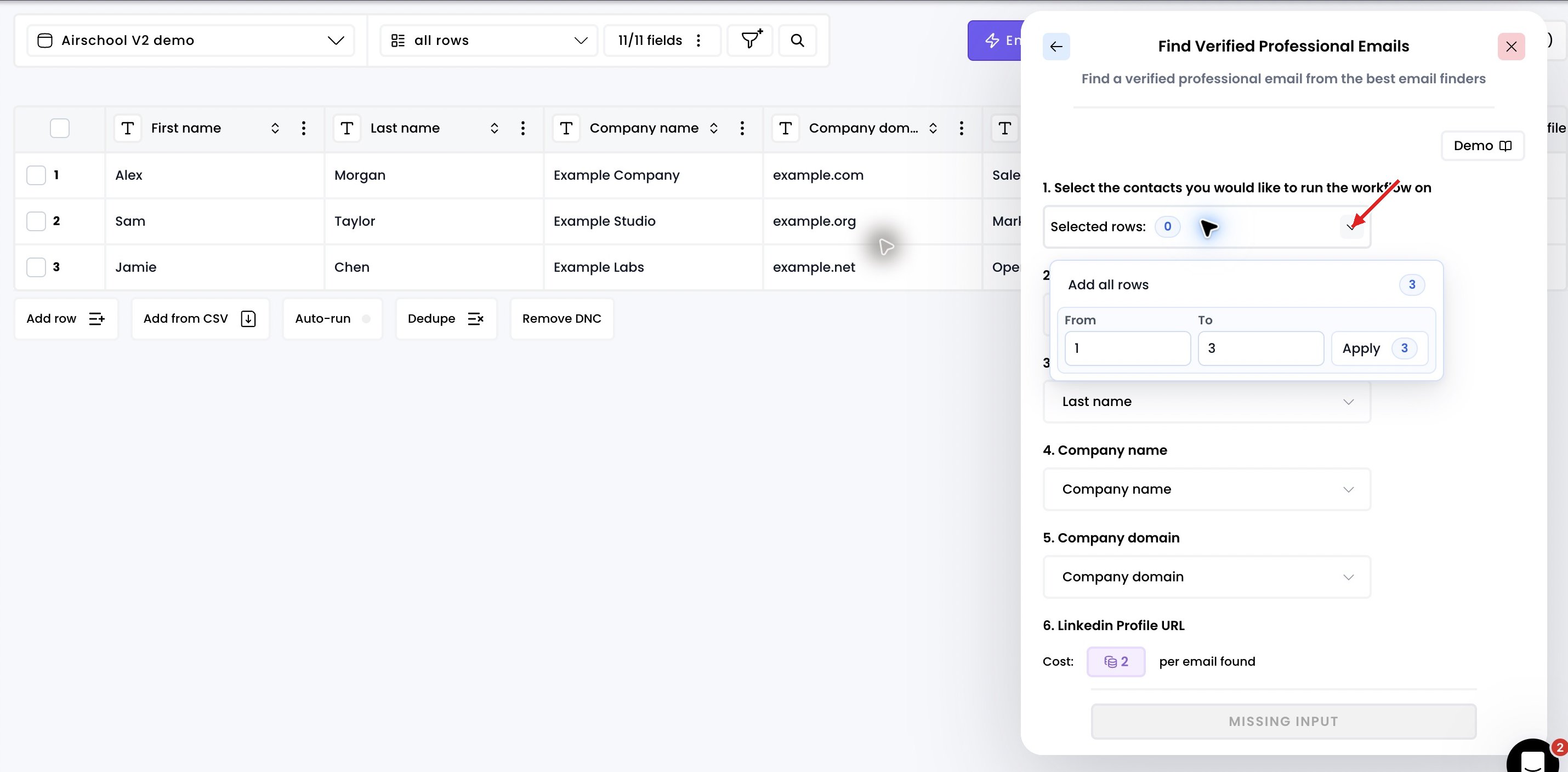
2. Select the rows to enrich

Open Selected rows and choose Add all rows, or enter a range and click Apply. Fetch company insights — 2. Select the rows to enrich in Airscale V2 — red arrow highlights the control to use
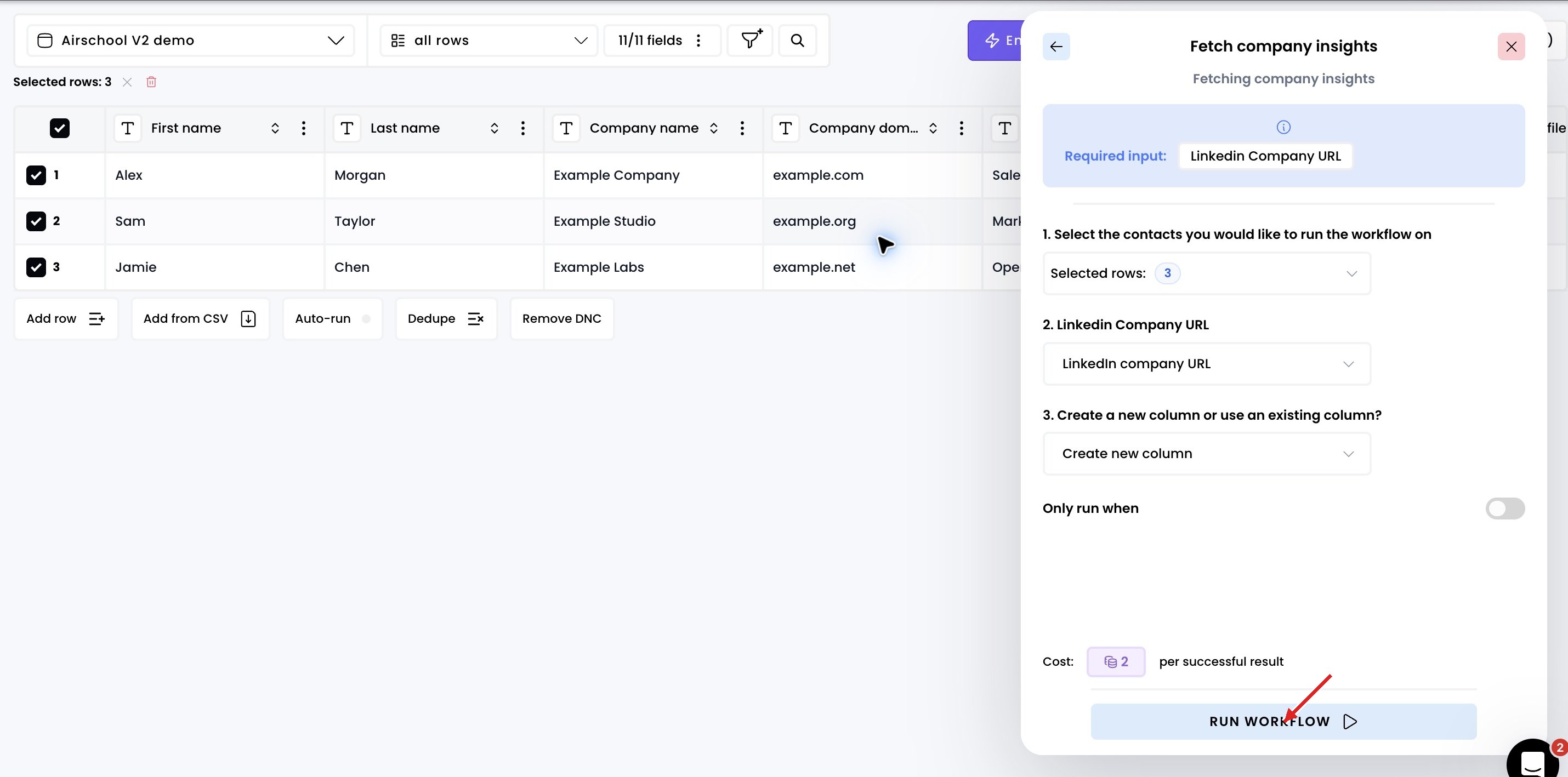
3. Run the workflow

Select the column containing your LinkedIn company URLs and choose the output column. Then click Run workflow. Fetch company insights — 3. Run the workflow in Airscale V2 — red arrow highlights the control to use
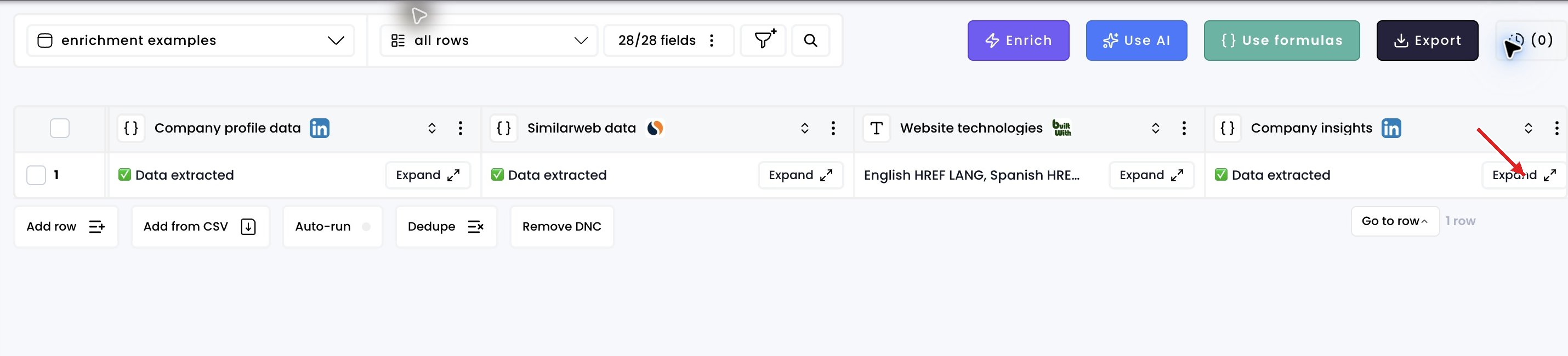
4. Access the results

Click Expand in the result cell. Use the JSON mapper search to find a field, such as staff count. Fetch company insights — 4. Access the results in Airscale V2 — red arrow highlights the control to use
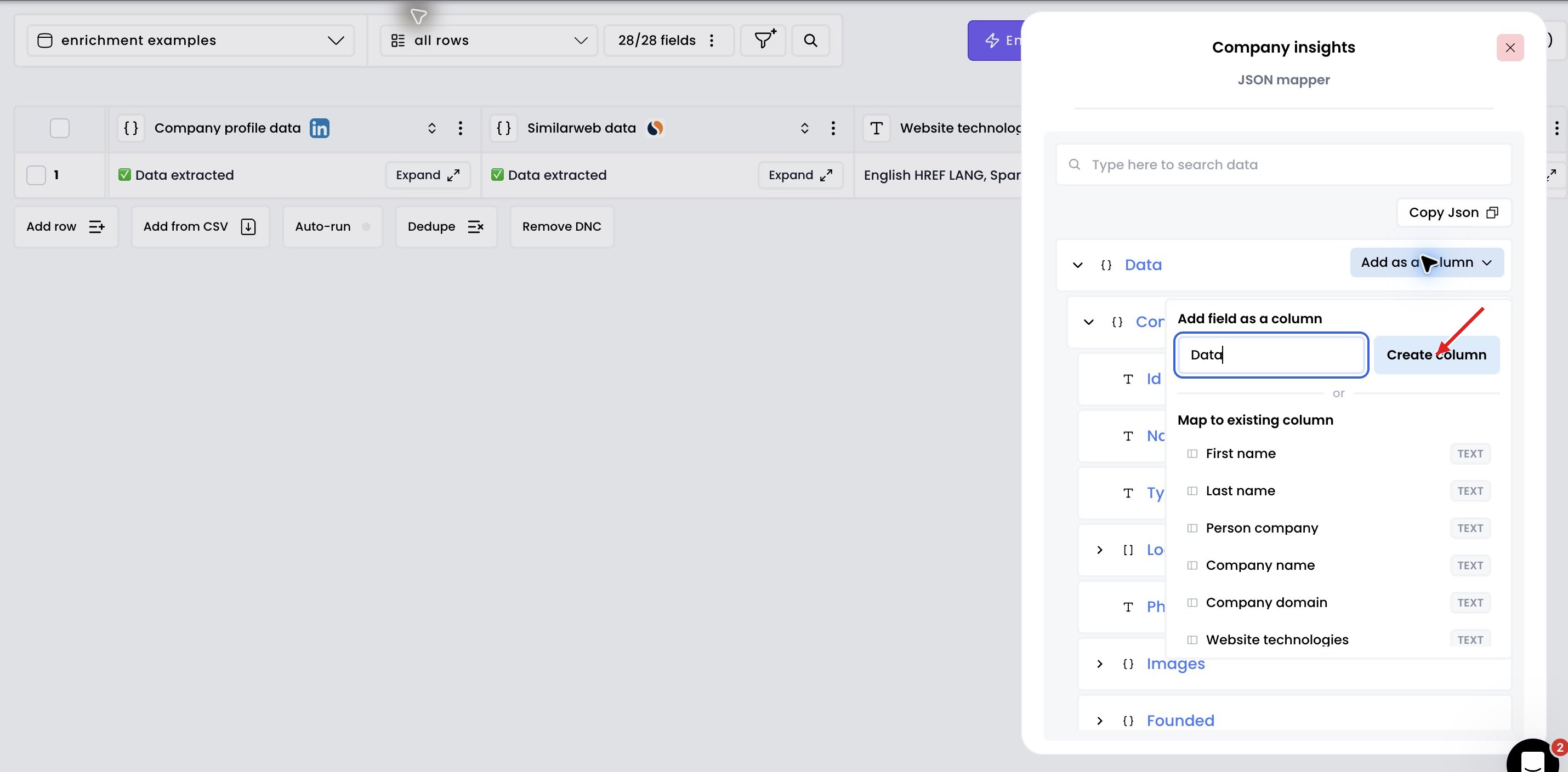
5. Add columns for any data points you want about the company

Choose Add as a column beside a field, then create a new column or map it to an existing one. Fetch company insights — 5. Add columns for any data points you want about the company in Airscale V2 — red arrow highlights the control to use