Note: the required input to find a LinkedIn company URL is a company domain

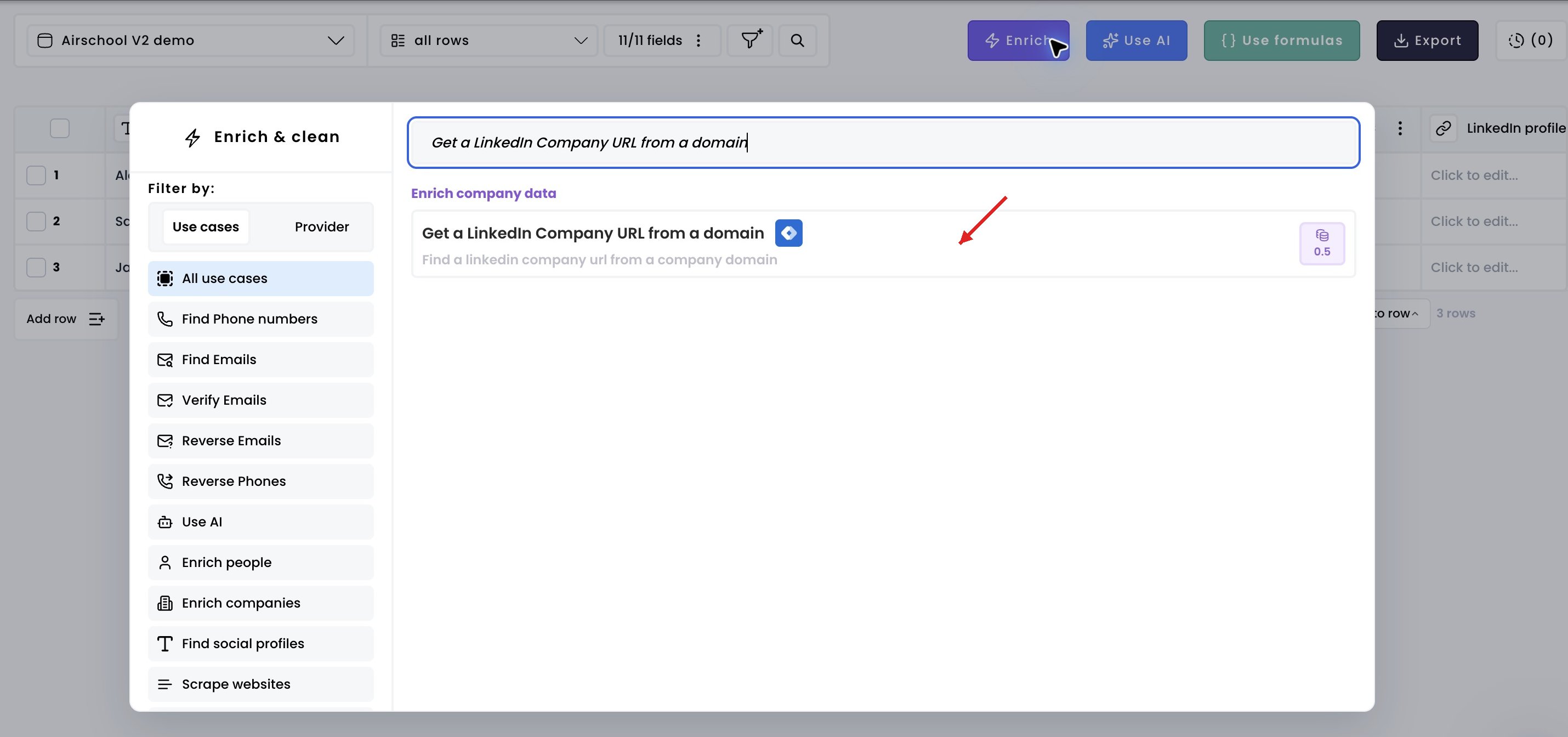
1. Select the enrichment

Click Enrich, then choose Get a LinkedIn Company URL from a domain. Find a Linkedin company URL from a domain — 1. Select the enrichment in Airscale V2 — red arrow highlights the control to use
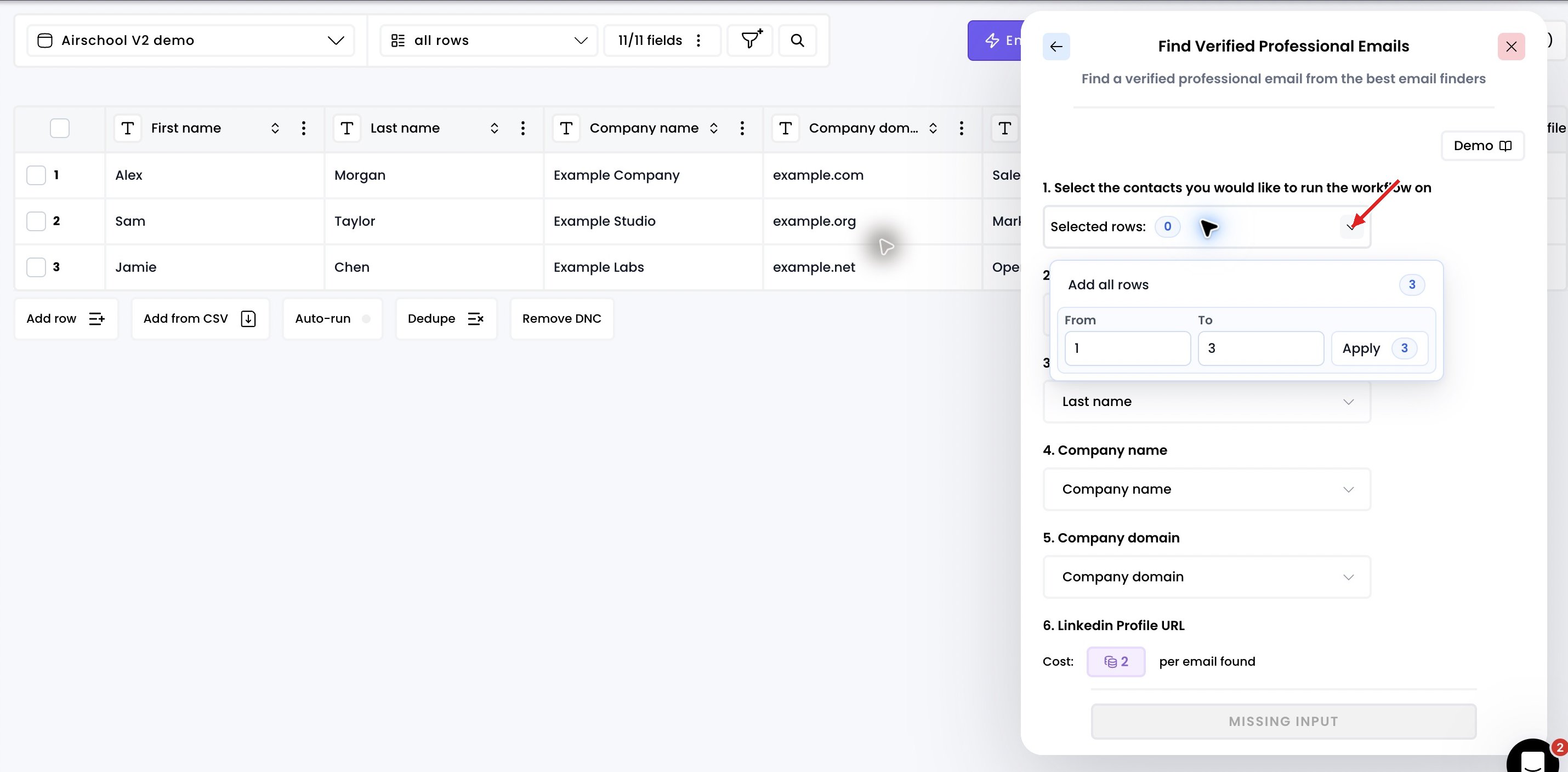
2. Select the rows to enrich

Open Selected rows and choose Add all rows, or enter a range and click Apply. Find a Linkedin company URL from a domain — 2. Select the rows to enrich in Airscale V2 — red arrow highlights the control to use
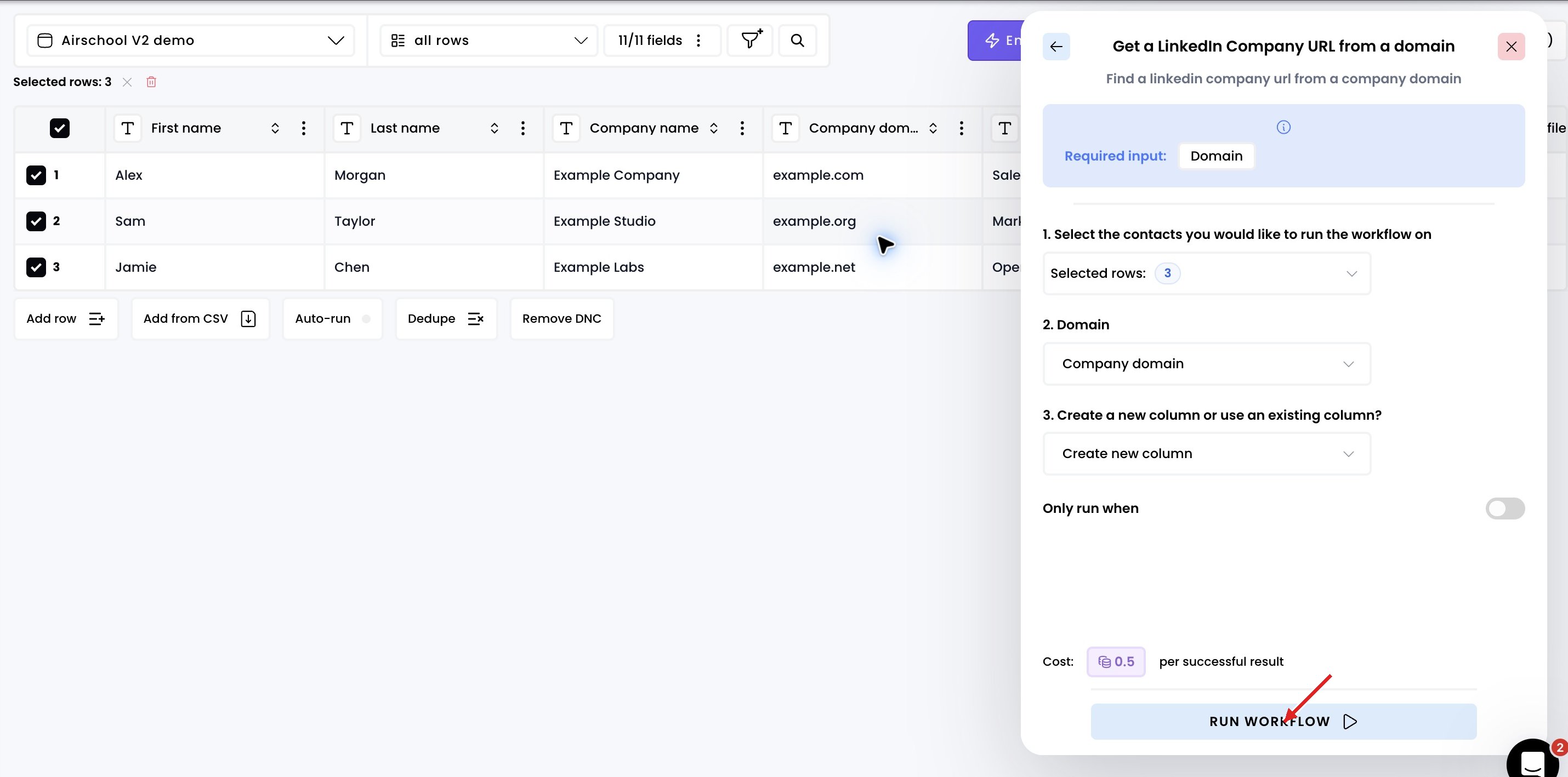
3. Run the workflow

Map the company domain column, then choose the output column. Then click Enrich [number] rows. Find a Linkedin company URL from a domain — 3. Run the workflow in Airscale V2 — red arrow highlights the control to use
4. Access the results

Review the selected output column when the lookup finishes. If the lookup fails, click Details in the result cell to read the reason before trying again.